
Creating an account
Sign-up takes four steps: email, nickname and password, starting balance and a code from your email, or one click through Google.
1.2.1Where to begin
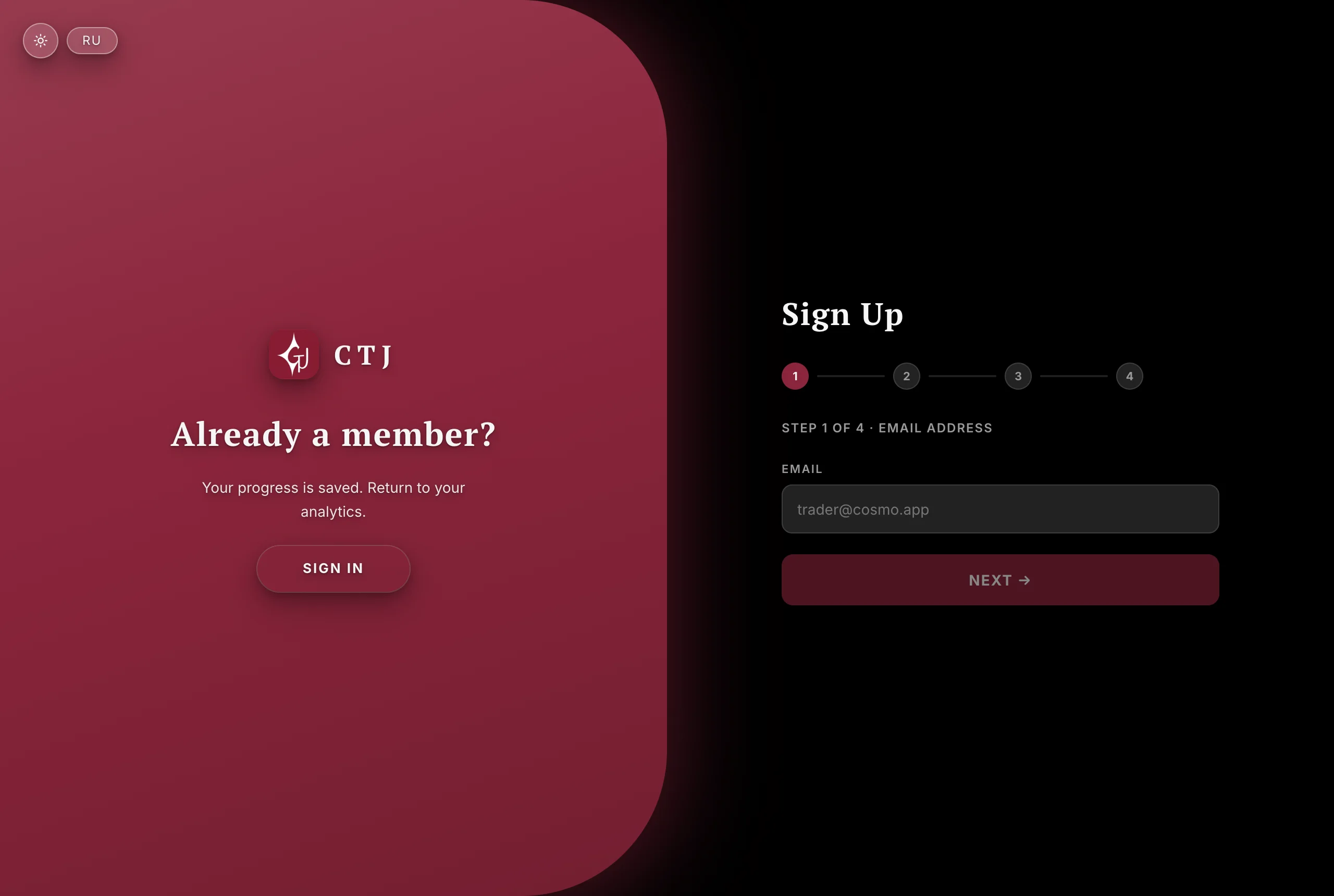
Press Get started on this site. The app opens at app.cosmotradingjournal.com, on a screen that holds two forms side by side. One is for signing in, the other for creating an account.
A coloured panel covers the form you are not using. Press Sign Up on it, under the words New here?, and the panel slides away from the sign-up form. Press Sign In, under Already a member?, and it slides back.
There are two ways to create an account. You can fill in a form of four steps, or you can press Continue with Google in the sign-in form.
1.2.2Language and theme of this screen
Two controls stand in the corner of the screen. The button EN or RU switches the language. Your choice applies to the website, to this screen and to the app, and it stays with the browser. The button beside it switches between a light and a dark look.
1.2.3Moving through the four steps
The numbers at the top of the form show the step you are on and the steps you have finished. Next → takes you forward. The Enter key does the same thing. Both stay inactive until the current step is filled in correctly. Back returns to the previous step with everything you typed still in place.
If you reload in the same tab, the form keeps your email, nickname and starting balance. If you were on the balance step, it takes you back to the password step. Enter your password and verification code again when prompted.
1.2.4Step 1, email
Type the email address for the account. The line under the field says Looks good when the address is written correctly.
Choose an address you read every day. The confirmation code arrives there. So do the codes for a new password and the messages about your account and your payments.
1.2.5Step 2, nickname and password
The nickname is your name inside CTJ. You choose it yourself, and the app cannot be used without one. A nickname has from 3 to 24 characters. Latin letters, digits, the underscore _, the period . and the currency signs $, €, £, ₽, ¥ and ₩ are allowed. A period cannot stand first or last, and two periods cannot stand together.
While you type, the form checks the name and shows Available or Taken. Later you can sign in with the nickname or with the email.
The password has a list of requirements under the field, and each line gets a mark as soon as you meet it. The password needs at least 8 characters, one letter and one digit. Common passwords are rejected. Avoid using your nickname or the part of your email address before the @ sign as your password. The scale beside the list shows how strong the password is, from Weak to Strong. The eye in the field shows the password and hides it again.
1.2.6Step 3, starting balance
Enter the sum you start with, in dollars. The equity chart on the real Dashboard grows from this number. A profit of 500 dollars looks different on an account of 1,000 and on an account of 100,000.
The field starts at $10,000. Leaving it blank also uses $10,000. To set your own balance, enter at least $1. You can include cents. You can change the balance later on the Account tab of the settings. If you prefer a chart that starts from zero, the Appearance tab has a switch for it.
Create account finishes this step. The line under the button links to the Terms of Service and the Privacy Policy that you accept with it.
1.2.7Step 4, the code from your email
CTJ sends a 6-digit code to your address. Type it into the six cells. You can also paste the whole code at once, and the digits spread over the cells by themselves. The app checks the code as soon as all 6 digits are entered. You can also submit it with Verify.
If there is no email, look in the spam folder. Resend code sends another one. The button becomes active a minute after the previous email.
When the code is right, the account is confirmed and you move on to the choice of a plan.
1.2.8Signing up with Google
Continue with Google replaces the email, the password and the code. Choose your Google account in the window that opens. Google confirms your address for you.
You still choose a nickname. After Google lets you in, the app shows Choose your nickname with one field. The rules are the same as in the form, from 3 to 24 allowed characters. Continue becomes active when the name is free.
1.2.9Signing in, and a forgotten password
Type your nickname or your email into Nickname or Email, type the password and press Enter CTJ. Both fields are required. If you created the account with Google, press Continue with Google here too. The app keeps you signed in on this computer until you press Sign out in the menu of your profile.
If you do not remember the password, set a new one.
- Press Forgot password? under the password field.
- Type the email of your account and press Send code.
- Open the email and copy the 6-digit code into Code from email.
- Type the new password twice, in New password and in Confirm password. The list of requirements is the same as at sign-up.
- Press Save password, then sign in with the new password.
Resend code on the last screen sends the code again after a minute.
1.2.10Reader Mode on the sign-in screen
✦ Reader Mode is for a person who looks at somebody else's journal, for example a mentor or an investor. This person does not need a CTJ account. The owner of the journal has Just or a higher plan. The owner turns on reader access in the settings and passes on two things, a Reader ID and a password for readers.
- Press ✦ Reader Mode under the sign-in form.
- Type the Reader ID and the Reader password.
- Type your name in Your name and your email in Email. The owner sees both in the list of readers.
- Press Continue.
The journal opens as a read-only trade table with no session cards. Select Exit in the top bar to end the visit. A reader does not see the tabs Accounts, Backtest Journal, Trade Simulator and AI Coach. A plan allows a certain number of readers at the same time. When all the places are taken, the reader can come back later.