
The first screen
The result of all your sessions, the statistics cards and the list of sessions.
7.2.1The result of everything
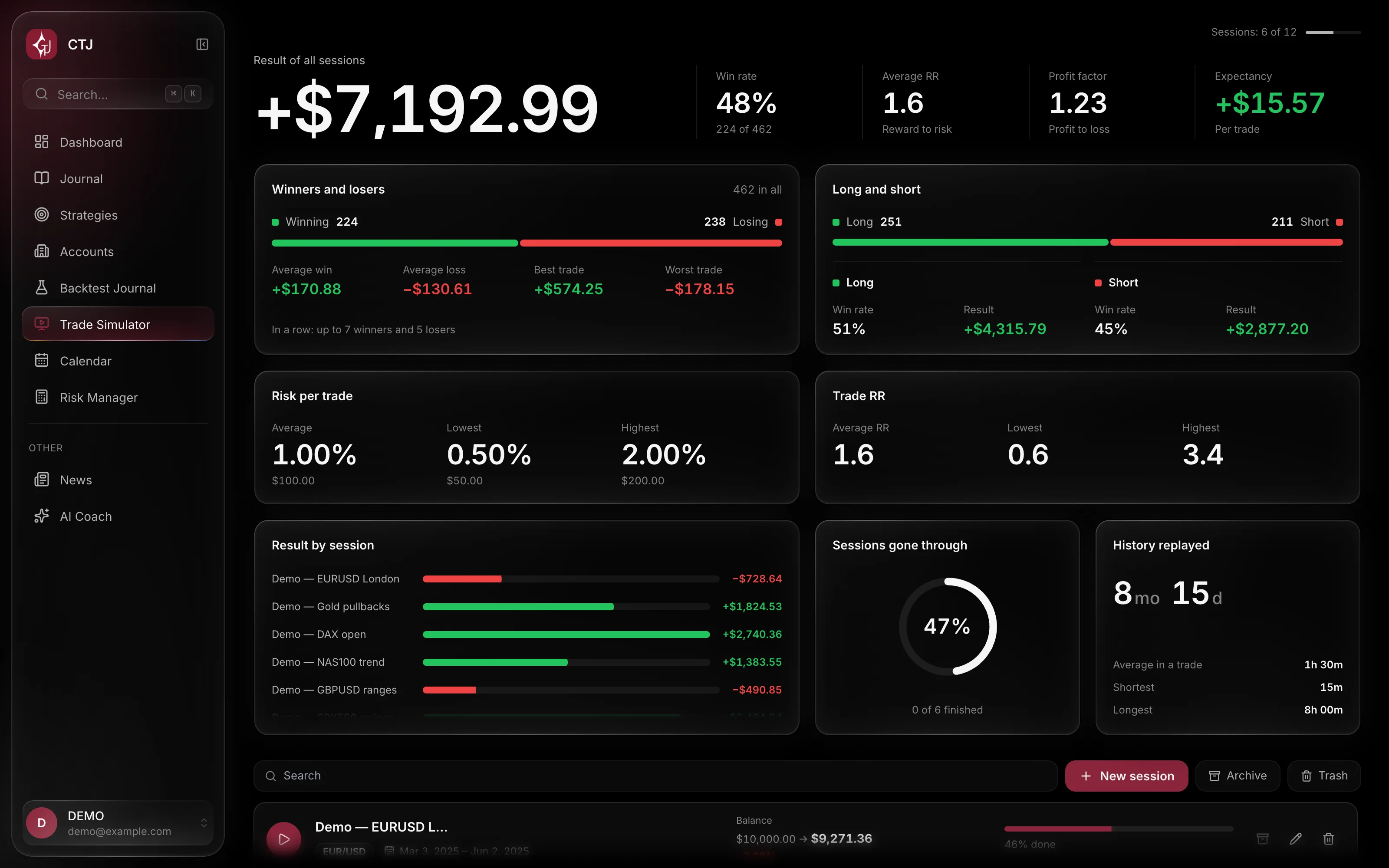
The tab opens on your simulator's own statistics. On top is Result of all sessions, the largest number on the screen, with four figures next to it: Win rate, Average RR, Profit factor and Expectancy. A line above shows how many of your sessions you are using, for example Sessions: 3 of 13.
If you already have an open session and you return to this tab, the app reopens it, so that you can carry on where you were. Back to sessions takes you here.
7.2.2The cards
Below them, each card tells one thing:
Winners and losers shows how many of each, the Average win, the Average loss, the Best trade and the Worst trade, and the longest streaks.
Long and short sets your two directions side by side, with the win rate and the result of each.
Risk per trade gives the Average, Lowest and Highest, in percent and in money. Trade RR does the same for your risk-to-reward.
History replayed adds up how much market time you have gone through in all your sessions. Sessions gone through shows how many have reached the end. Average in a trade gives the Shortest and Longest too.
Result by session draws one bar for each session, so you can compare them. It scrolls inside the card.
Which trades these numbers count depends on a choice you make for each session. The figures here cover all your sessions, including those in the archive.
7.2.3The list of sessions
Under the cards is the list. Each row shows the name, the period, the balance and how far you have got, as a percentage. If a session has a strategy or a linked journal session, it shows them too, and Statistics: demo + journal marks where the statistics come from. Click a row to open the session.
The buttons on a row are: to archive it, which opens only when it is 100% replayed; to edit it; and to move it to the trash. The Search field finds a session by name.
Above the list, New session starts another, and Archive and Trash open those windows and show how many sessions are inside. With no sessions, the screen shows one large button that starts the first.
When you get close to your plan's limit, a small notice says how many are left, and which plan has more; it also reminds you that finished sessions can go to the archive to free places.