
Subscription
Your plan, its space for all time, the payment portal with cancellation, payment history and legal documents.
12.5.1Your plan
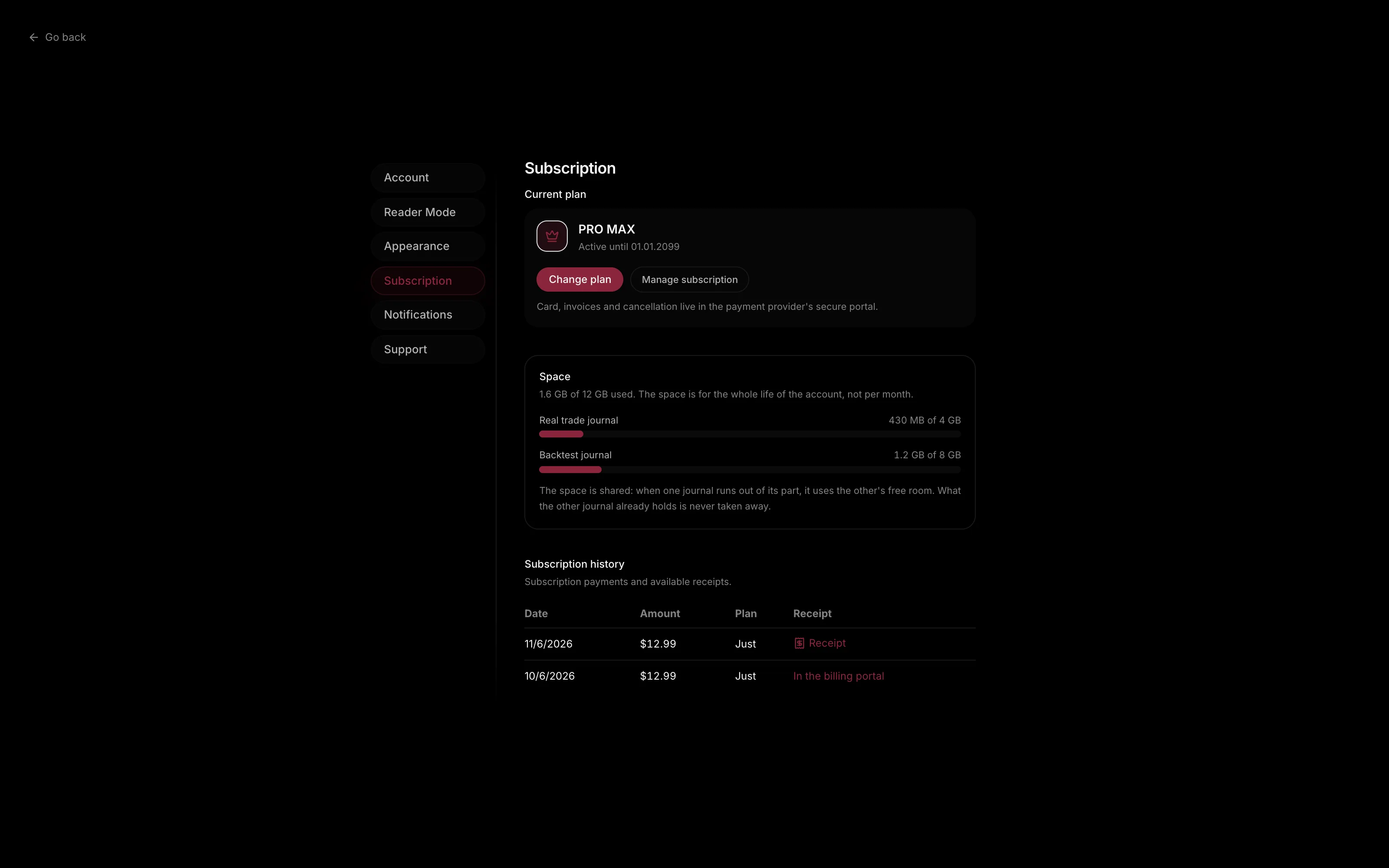
Current plan shows your plan and its status, for example how many days are left in the trial. Change plan opens the plan window with the same cards as at registration. The full list of limits is on the pricing page.
12.5.2Your plan's space
Space shows how much of the plan's space is used. The space is for the whole life of the account, not per month, and has two bars: Real trade journal and Backtest journal. It holds your screenshots and pictures and the text of your trades, strategies and accounts. The bars update by themselves while the tab is open. When one journal runs out of its part, it uses the other's free room, and the line under the bars says how much it took. The bars turn red when all of the plan's space is used: new trades and files then wait until you delete some or move to a higher plan. Filling the space does not delete saved data.
12.5.3Managing a subscription
Manage subscription opens the secure portal of the payment provider, where your card, your invoices and cancellation live. CTJ itself never sees your card number. If there have been no payments on the account yet, the button says there is nothing to manage. Right after paying, it may ask you to try again in a few seconds, while the subscription is still syncing.
You can cancel at any time. After cancelling, you keep your plan until the end of the paid period, and then your limits drop to those of Starter.
12.5.4Your VIP card
On the VIP plan, select My VIP card to edit your member card. Enter a public name or nickname. You can add a country, a photo and a description of up to 120 characters. Use the switches to show the card photo, trader score, account balance and best assets. Confirm that you agree to publish the selected details before saving. The card image does not change your profile picture.
12.5.5History and documents
Subscription history sits below the storage card. Each row shows the payment date, the amount charged in the original currency, the plan you bought and an option for the receipt. A direct link opens the receipt in your browser when available. In the billing portal opens the payment portal, where you can find payment documents.
Below are links to Terms, Privacy, Refunds and Pricing. Under the refund policy, you can request a refund for a subscription payment within 7 calendar days of the charge.
Read also1.6 Limits, and the end of a trial1.3 Choosing a plan