
Getting started
How CTJ is organised, how to create an account and choose a plan, how the sidebar and the search work, and what happens at the end of a trial.
1.1How the app is organised
CTJ has a real side and a test side that never mix, and each tab serves one of them.
1.1.1Two worlds that never mix
COSMO Trading Journal (CTJ) is a web app for traders. It keeps a record of your trades, counts your statistics and lets you practise on past markets. The app is divided into two worlds. One holds your real trading. The other holds your practice.
The real side has four tabs. They are Dashboard, Journal, Strategies and Accounts. Every number in them comes from trades you took with real money.
The test side has two tabs, Backtest Journal and Trade Simulator. It has its own sessions, its own strategies and its own accounts. A trade you take while you test an idea stays here.
Real trades and practice results are counted separately. A backtest cannot change one number on the real side, and a real trade cannot appear in the Backtest Journal. The two test tabs do share trades with each other. A position closed in the simulator can be saved to the Backtest Journal with one button.
1.1.2What each tab does
The guide goes through the tabs in the order of the sidebar, from top to bottom.
Dashboard opens first after you sign in. It turns your real trades into statistics, with an equity chart, a calendar of recent weeks and a trader portrait.
Journal is the place where you record real trades. Trades are grouped into sessions, for example one session for a month or for a setup. Each session has a table with search, filters, notes and screenshots.
Strategies holds your trading rules as documents with text and pictures. Each card shows the result of the trades that follow that rule.
Accounts is the list of your trading accounts. With it, every trade can say which account it was taken on.
Backtest Journal is a second journal for tested trades. It has its own dashboard, sessions, strategies and accounts.
Trade Simulator plays a past market forward on a chart, bar by bar. You place orders in it as you would in a live market.
Calendar shows the profit and loss of your real trading by day, month and year.
Risk Manager calculates a position size from your balance, the risk you accept and your stop.
News and AI Coach stand in the group OTHER. Both are in development and are not available yet.
Settings is not in the list. It opens from the menu of your profile at the bottom of the sidebar.
1.1.3A screen that is wide enough
The app works in a window at least 1024 pixels wide, because the tables and the chart need the room. You can close the app on one computer and continue on another.
A phone is enough to create an account, to sign in and to choose a plan. When the account is ready, the phone shows two buttons. Copy link puts the address of the app on the clipboard. Email me the link sends the address to the email of your account. Open it on a computer, sign in, and your work continues from there.
This website and this guide read well on a phone. Only the app itself needs the width.
1.2Creating an account
Sign-up takes four steps: email, nickname and password, starting balance and a code from your email, or one click through Google.
1.2.1Where to begin
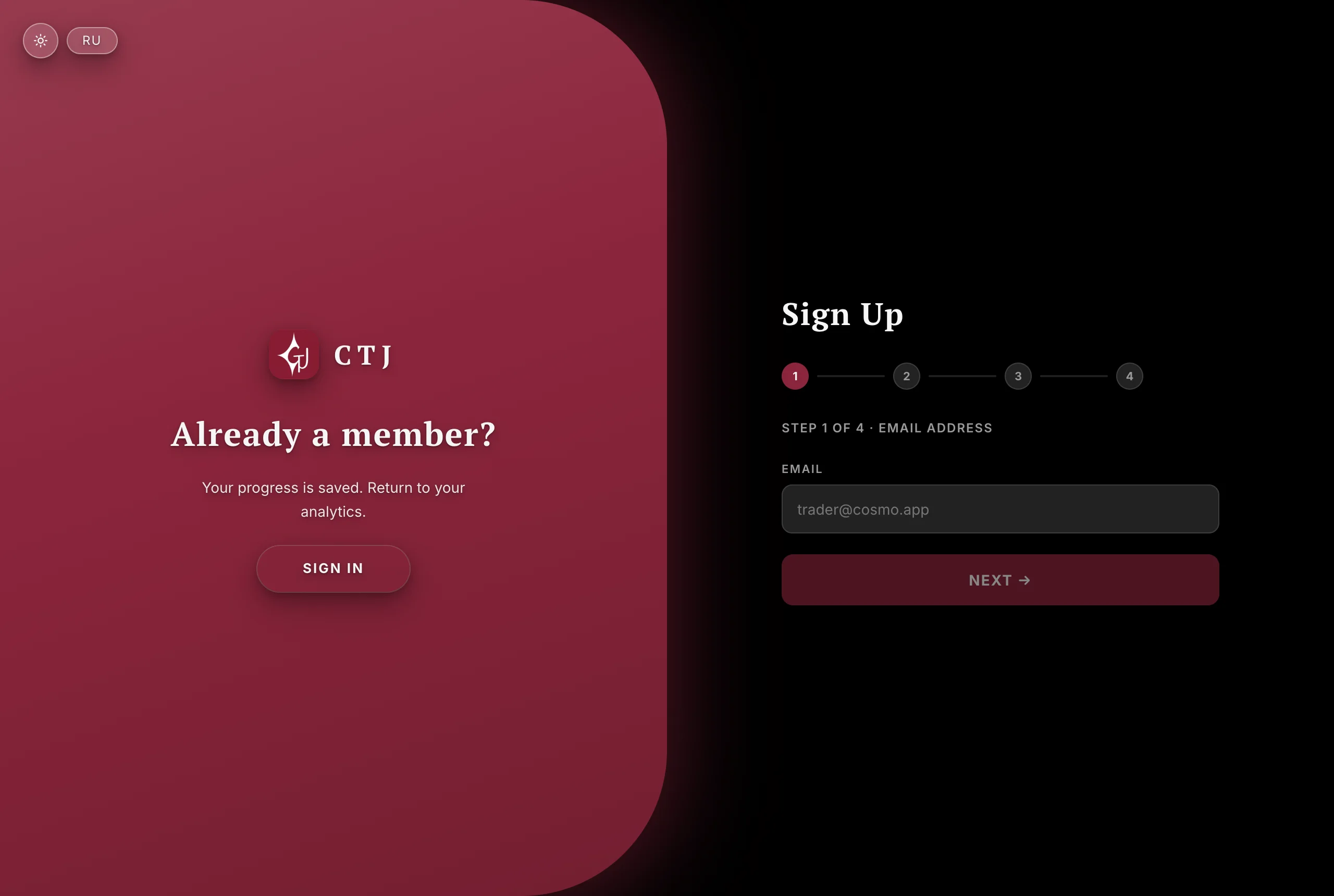
Press Get started on this site. The app opens at app.cosmotradingjournal.com, on a screen that holds two forms side by side. One is for signing in, the other for creating an account.
A coloured panel covers the form you are not using. Press Sign Up on it, under the words New here?, and the panel slides away from the sign-up form. Press Sign In, under Already a member?, and it slides back.
There are two ways to create an account. You can fill in a form of four steps, or you can press Continue with Google in the sign-in form.
1.2.2Language and theme of this screen
Two controls stand in the corner of the screen. The button EN or RU switches the language. Your choice applies to the website, to this screen and to the app, and it stays with the browser. The button beside it switches between a light and a dark look.
1.2.3Moving through the four steps
The numbers at the top of the form show the step you are on and the steps you have finished. Next → takes you forward. The Enter key does the same thing. Both stay inactive until the current step is filled in correctly. Back returns to the previous step with everything you typed still in place.
If you reload in the same tab, the form keeps your email, nickname and starting balance. If you were on the balance step, it takes you back to the password step. Enter your password and verification code again when prompted.
1.2.4Step 1, email
Type the email address for the account. The line under the field says Looks good when the address is written correctly.
Choose an address you read every day. The confirmation code arrives there. So do the codes for a new password and the messages about your account and your payments.
1.2.5Step 2, nickname and password
The nickname is your name inside CTJ. You choose it yourself, and the app cannot be used without one. A nickname has from 3 to 24 characters. Latin letters, digits, the underscore _, the period . and the currency signs $, €, £, ₽, ¥ and ₩ are allowed. A period cannot stand first or last, and two periods cannot stand together.
While you type, the form checks the name and shows Available or Taken. Later you can sign in with the nickname or with the email.
The password has a list of requirements under the field, and each line gets a mark as soon as you meet it. The password needs at least 8 characters, one letter and one digit. Common passwords are rejected. Avoid using your nickname or the part of your email address before the @ sign as your password. The scale beside the list shows how strong the password is, from Weak to Strong. The eye in the field shows the password and hides it again.
1.2.6Step 3, starting balance
Enter the sum you start with, in dollars. The equity chart on the real Dashboard grows from this number. A profit of 500 dollars looks different on an account of 1,000 and on an account of 100,000.
The field starts at $10,000. Leaving it blank also uses $10,000. To set your own balance, enter at least $1. You can include cents. You can change the balance later on the Account tab of the settings. If you prefer a chart that starts from zero, the Appearance tab has a switch for it.
Create account finishes this step. The line under the button links to the Terms of Service and the Privacy Policy that you accept with it.
1.2.7Step 4, the code from your email
CTJ sends a 6-digit code to your address. Type it into the six cells. You can also paste the whole code at once, and the digits spread over the cells by themselves. The app checks the code as soon as all 6 digits are entered. You can also submit it with Verify.
If there is no email, look in the spam folder. Resend code sends another one. The button becomes active a minute after the previous email.
When the code is right, the account is confirmed and you move on to the choice of a plan.
1.2.8Signing up with Google
Continue with Google replaces the email, the password and the code. Choose your Google account in the window that opens. Google confirms your address for you.
You still choose a nickname. After Google lets you in, the app shows Choose your nickname with one field. The rules are the same as in the form, from 3 to 24 allowed characters. Continue becomes active when the name is free.
1.2.9Signing in, and a forgotten password
Type your nickname or your email into Nickname or Email, type the password and press Enter CTJ. Both fields are required. If you created the account with Google, press Continue with Google here too. The app keeps you signed in on this computer until you press Sign out in the menu of your profile.
If you do not remember the password, set a new one.
- Press Forgot password? under the password field.
- Type the email of your account and press Send code.
- Open the email and copy the 6-digit code into Code from email.
- Type the new password twice, in New password and in Confirm password. The list of requirements is the same as at sign-up.
- Press Save password, then sign in with the new password.
Resend code on the last screen sends the code again after a minute.
1.2.10Reader Mode on the sign-in screen
✦ Reader Mode is for a person who looks at somebody else's journal, for example a mentor or an investor. This person does not need a CTJ account. The owner of the journal has Just or a higher plan. The owner turns on reader access in the settings and passes on two things, a Reader ID and a password for readers.
- Press ✦ Reader Mode under the sign-in form.
- Type the Reader ID and the Reader password.
- Type your name in Your name and your email in Email. The owner sees both in the list of readers.
- Press Continue.
The journal opens as a read-only trade table with no session cards. Select Exit in the top bar to end the visit. A reader does not see the tabs Accounts, Backtest Journal, Trade Simulator and AI Coach. A plan allows a certain number of readers at the same time. When all the places are taken, the reader can come back later.
1.3Choosing a plan
After sign-up you pick Starter, Just, PRO MAX or VIP, and the free trial of a paid plan is offered only at this moment.
1.3.1The plan window
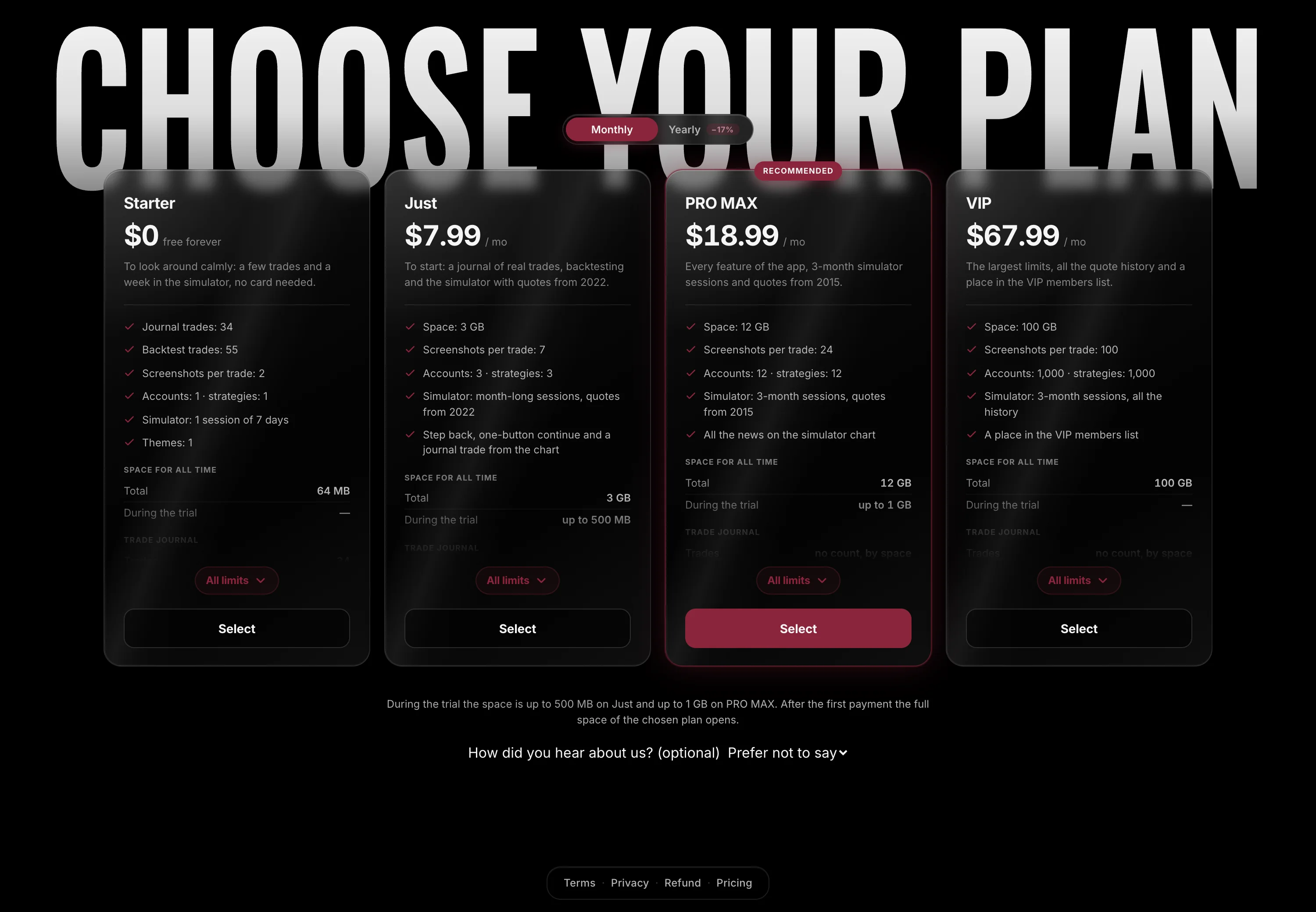
After the code is confirmed you choose a plan. The window has four cards, Starter, Just ($7.99 a month), PRO MAX ($18.99 a month) and VIP ($67.99 a month). The app opens when the choice is made.
A press on Select does not start the plan at once. A second window opens first and says what the choice means. You confirm it there, or press Back and look at the other cards.
Under the cards there is an optional list, How did you hear about us?. The answer changes nothing in your account.
1.3.2Monthly or yearly
The switch above the cards has two positions, Monthly and Yearly. With Yearly on, every paid card shows the price of one month inside a yearly payment, the sum for the whole year and the saving in per cent. The yearly payment costs as much as ten months. The plan itself is the same in both positions.
The position matters for VIP, where the payment page opens with the period you have chosen here. For Just and PRO MAX you choose the period again when you pay.
1.3.3Reading a card
A card shows the price, one sentence about who the plan is for, and a short list of what it includes. All limits opens the full list of numbers for this plan, and Show less closes it. The other cards stay where they are, and you can open several lists and compare them line by line.
1.3.4What the space of a plan is
Paid plans do not count trades. They give you space for the whole life of the account. Screenshots, pictures and the text of your trades, strategies and accounts take up this space.
The space has two parts, one for each journal.
- Just has 3 GB. Of these, 1 GB belong to the real journal and 2 GB to the backtest journal.
- PRO MAX has 12 GB, divided into 4 GB and 8 GB.
- VIP has 100 GB, divided into 20 GB and 80 GB.
The parts show where each journal starts. A journal that fills its own part goes on into the free room of the other one, up to the whole space. Room that is already in use is never taken away. The Subscription tab of the settings shows with two bars how much each journal uses.
1.3.5A free trial of Just or PRO MAX
Just and PRO MAX can be tried for 14 days without a card. Press Select on one of them and then Start free trial.
All the features and limits of the plan work from the first minute. Only the space is smaller until the first payment, up to 500 MB on Just and up to 1 GB on PRO MAX. The full space opens with the payment.
Add a card 3 days before the end of the trial if you want to stay on the plan. Without a card, the account moves to the limits of Starter on the last day.
The trial is offered once, in this window. Take your time with this choice.
1.3.6Choosing Starter
Starter is free and has no end date. It is meant for a calm look around, and its limits are small.
- Real trades, up to 34.
- Backtest trades, up to 55.
- Sessions in each journal, up to 2.
- Real accounts, up to 1. Real strategies, up to 1.
- Simulator sessions at the same time, up to 1, each up to 7 days long.
With Starter you give up the free trial for good. You can pay for any plan later, on any day. Confirm the choice with I understand — choose Starter.
1.3.7Choosing VIP
VIP starts with a payment and has no trial. Press Select, then Go to payment. A window for your card in the list of VIP members opens first, and the payment page follows it.
The free trial of Just and PRO MAX is not kept after this choice. If you leave the payment page without paying, the account opens on Starter. You can subscribe later from the settings.
1.3.8Your card in the list of VIP members
VIP members have a list on this website. Your card in it shows what you allow and nothing more.
- Choose a photo adds a photo for the card only. The photo of your profile stays separate. Remove photo takes it off.
- The name is required. It can be your real name, a nickname or any other name up to 60 characters long.
- The country is a list. Leave Do not show a country if you do not want it on the card.
- A short line about you is optional and has room for 120 characters.
Under the fields there are four switches, and all four are off at first.
- The photo above shows the photo on the card.
- My trader score (0–100) shows the score from your Dashboard.
- My account balance shows the balance from your Dashboard.
- My best assets: the one that earned most and the one I have traded longest shows two markets from your journal.
The preview beside the form changes while you type. The tick of consent is required, because everything on the card is public. Save and go to payment saves the card and opens the payment page. You can edit the card later from the settings. Some fields can be changed once a month, and the form shows the date of the next change.
1.3.9The welcome window and the first minutes
A short welcome appears once. Get started opens the Dashboard. It fills with numbers after your first trades. A good order for the first minutes is this one.
- Open Accounts and add the account you trade on. Trades will have somewhere to belong.
- Open Strategies and write down your main setup, even in two lines.
- Open Journal, press New session and give the session a name.
- Open the session, press New Trade and record one trade.
- Return to Dashboard and look at the first numbers.
Read also1.6 Limits, and the end of a trial12.5 Subscription3.5 Recording a trade
1.4The sidebar and the account menu
The panel on the left holds every tab, and the menu of your profile holds settings, subscription, theme, language and support.
1.4.1What is in the sidebar
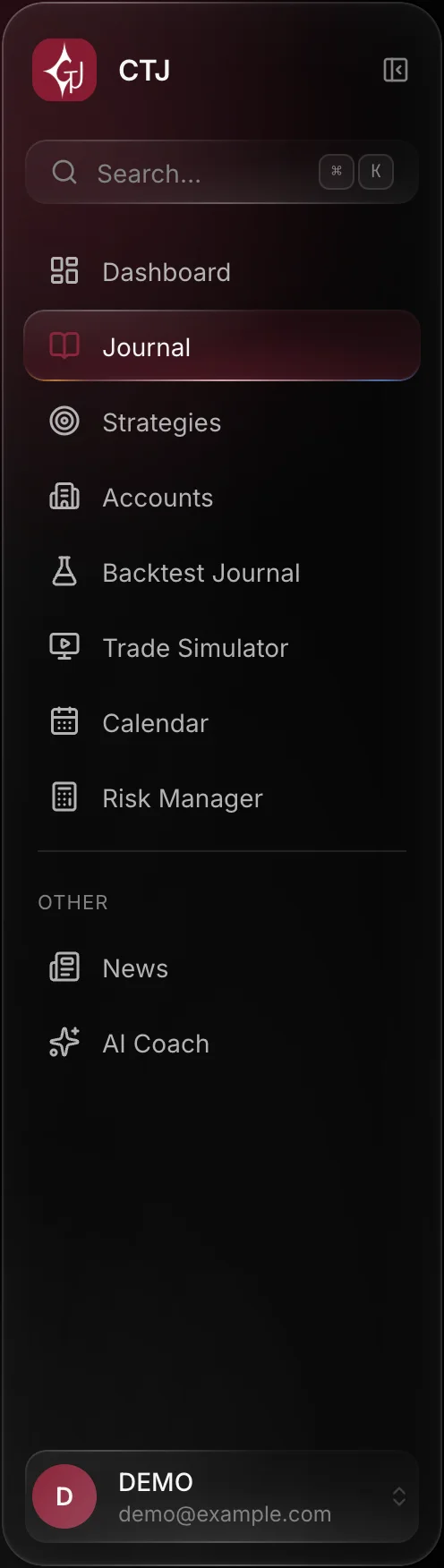
The sidebar stays on the left of every tab. From top to bottom it has the logo, the search field, eight main tabs, the group OTHER and your profile. One click on a tab opens it. The open tab is lit.
On Starter there is one more button above the profile, Upgrade to Just. It opens the plan window and disappears after you move to a paid plan.
1.4.2Making it narrow
next to the logo folds the sidebar down to icons, and the page gets more room. This helps on a wide table or on the simulator chart. unfolds it. While the sidebar is narrow, point at an icon to see the name of the tab.
The app remembers the position on this computer. The sidebar stays narrow the next time you open it.
1.4.3The menu of your profile
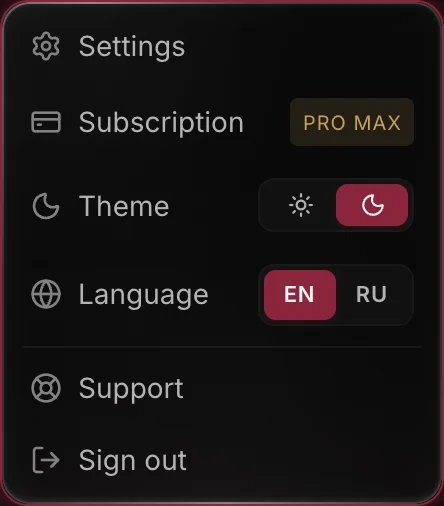
Click your name at the bottom of the sidebar. The arrows mark the place. A menu rises above the name, and everything in it works at once, without a separate save.
Settings opens the settings. The back button there returns you to the screen you came from.
Subscription opens the plan window over the current screen. The badge beside it names your plan. In this window, Choose plan on a paid card opens the payment page. The card of your own plan says Current plan.
Theme has two positions, light and dark . The light look exists for the main theme, Obsidian Glass. With another theme chosen in the settings, the switch stays on dark and does not move. When you return to Obsidian Glass, your last position comes back.
Language switches the whole interface between EN and RU. The choice is saved in your account and follows you to another computer.
Support opens the support tab of the settings with the addresses of the team.
Sign out ends the work on this computer at once.
In the narrow sidebar the same menu shrinks to icons. One click on the theme icon or on the globe switches to the other position. A click outside the menu or the Esc key closes it.
Read also1.5 Search on ⌘K12.4 Appearance
1.5Search on ⌘K
One keyboard shortcut opens a search across tabs, commands, trades, strategies and accounts.
1.5.1One search for everything
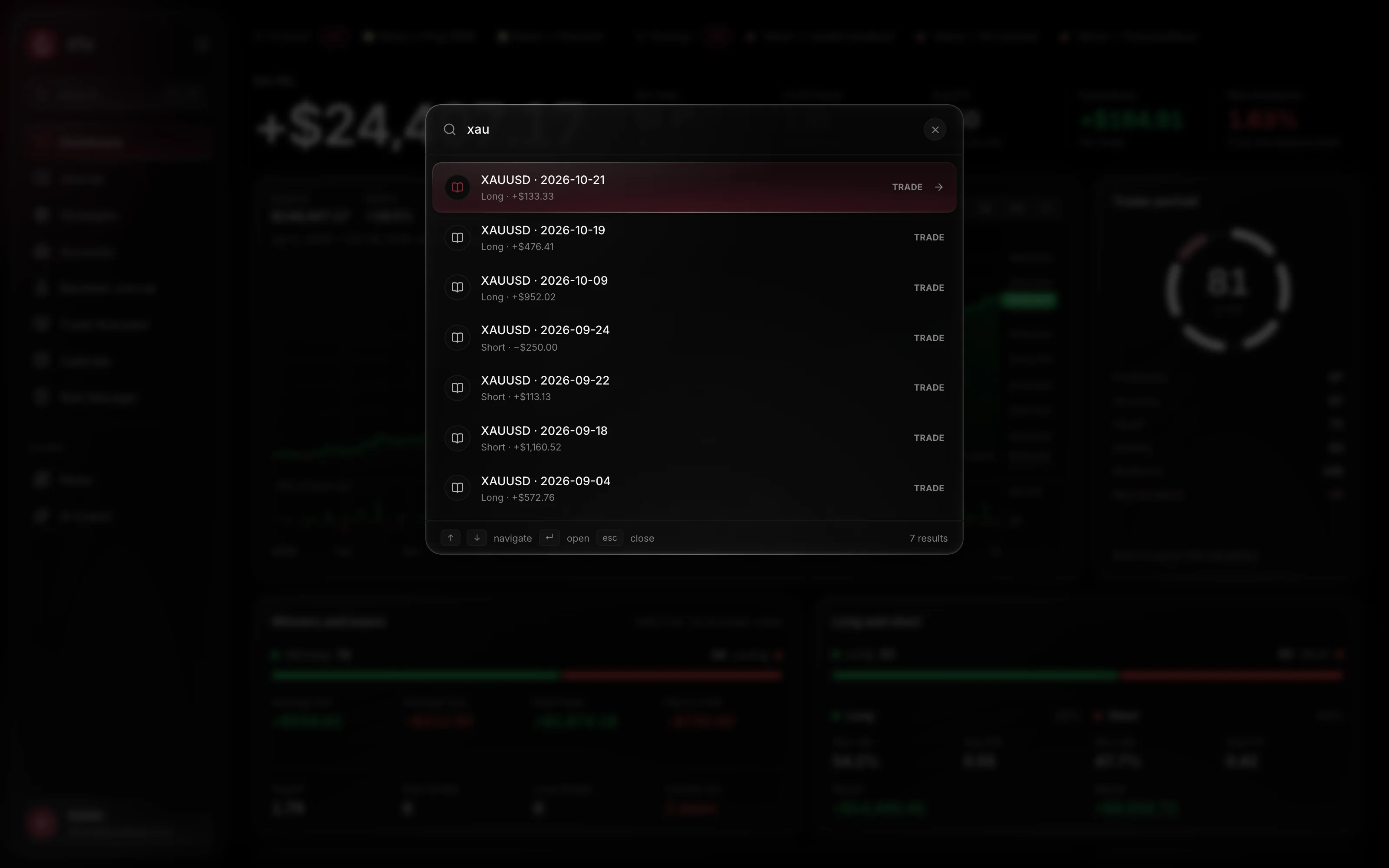
Press ⌘K on a Mac or Ctrl+K on Windows. A click on the field in the sidebar does the same. The search window opens over the current screen. The same keys close it, and so do Esc and a click outside.
Type a few letters. The list changes with every letter, and the word on the right of each row says what the row is.
- Tabs. Every tab of the sidebar and Profile. The search is the way to the profile page.
- Commands. New trade opens the form in the session you last added a trade to. If you have yet to add a trade, it uses your first session. If you have no sessions, it opens the Journal, where you can create one. New account and New strategy open the tab where you create them.
- Trades. The row shows the symbol and the date, with the direction and the result under them. Selecting a trade opens its form. In Reader Mode, it opens the trade’s screenshots if it has any, or the journal table.
- Strategies and accounts. A choice opens the tab that holds them. An account also shows its balance and currency.
You do not have to type a name in full. Letters in the right order are enough, and eurd finds EURUSD.
1.5.2What the search covers
Search covers the 30 most recently added trades in the live journal, excluding frozen trades and trades that are only in hidden sessions. To find an older trade, open its session in the Journal and search above the table. That search covers the whole session.
1.5.3Working from the keyboard
↑ and ↓ move along the list. ↵ opens the highlighted row and closes the window. esc closes the window without a choice. You can go from any tab to a new trade without touching the mouse. Press ⌘K, type new, press ↵.
Read also1.4 The sidebar and the account menu3.5 Recording a trade
1.6Limits, and the end of a trial
When paid access ends, data above the Starter limits is frozen for 60 days, not deleted, and paying brings it all back.
1.6.1What a limit means
A plan sets how many sessions, tags, accounts and strategies you can keep, how long a note can be and how many pictures a trade can hold. The full table is on the pricing page.
Starter also counts trades. Real trades and backtest trades have separate counts, 34 and 55. You can spend a whole count in one session or spread it over several. Paid plans do not count trades. They measure the space your data takes.
The real journal and the backtest journal have separate limits for sessions, tags, accounts and strategies. A full list on one side does not affect the other.
1.6.2When a limit is reached
When you reach a limit, you cannot add another item. Your saved data stays in place.
When a list of sessions, tags or trades is nearly full, a strip above the sessions says how many places are left.
1.6.3While a trial runs
During a trial the Dashboard shows a banner with the days that remain. Open subscription on the banner opens the plan window. The cross hides the banner until the next reload of the page.
Pay for the plan on any day of the trial. Your trades, pictures and settings stay in place, and the full space of the plan opens.
1.6.4When a trial or a subscription ends
When paid access ends, the account gets the limits of Starter. Your data is not deleted at that moment. Everything that fits Starter works as before. Everything above it is frozen for 60 days.
- A trade above the limit stays in its place, covered with a grey panel. Its numbers leave the statistics.
- A note longer than the Starter limit shows its beginning. The rest is covered.
- A screenshot above the limit is covered.
- A session above the limit gets the mark Locked and does not open.
- Accounts and strategies stay in their lists. You cannot add new ones while a list is above the limit.
While the data is frozen, the Dashboard counts the days that remain. Keep my data on this banner opens the plan window. CTJ also sends an email at the start and another one 7 days before the end.
A payment opens everything at once, exactly as it was. Without a payment, the frozen data is deleted after 60 days. The account goes on working on Starter.
1.6.5Moving to another plan
Open the plan window from Subscription in the menu of your profile, or from the Subscription tab of the settings. Choose Monthly or Yearly and press Choose plan. The payment page opens in the same window. After the payment you return to the app, and the new limits work at once.
The card, the invoices and the cancellation are in the secure portal of the payment provider. The button that opens it is on the Subscription tab of the settings. Under the Refund Policy, you can request a refund for a subscription charge within 7 days of the charge.
Read also12.5 Subscription1.3 Choosing a plan