
Positions, orders and history
Closing all or part of a trade, moving the stop to break even, and the record of closed trades.
7.8.1The panel under the chart
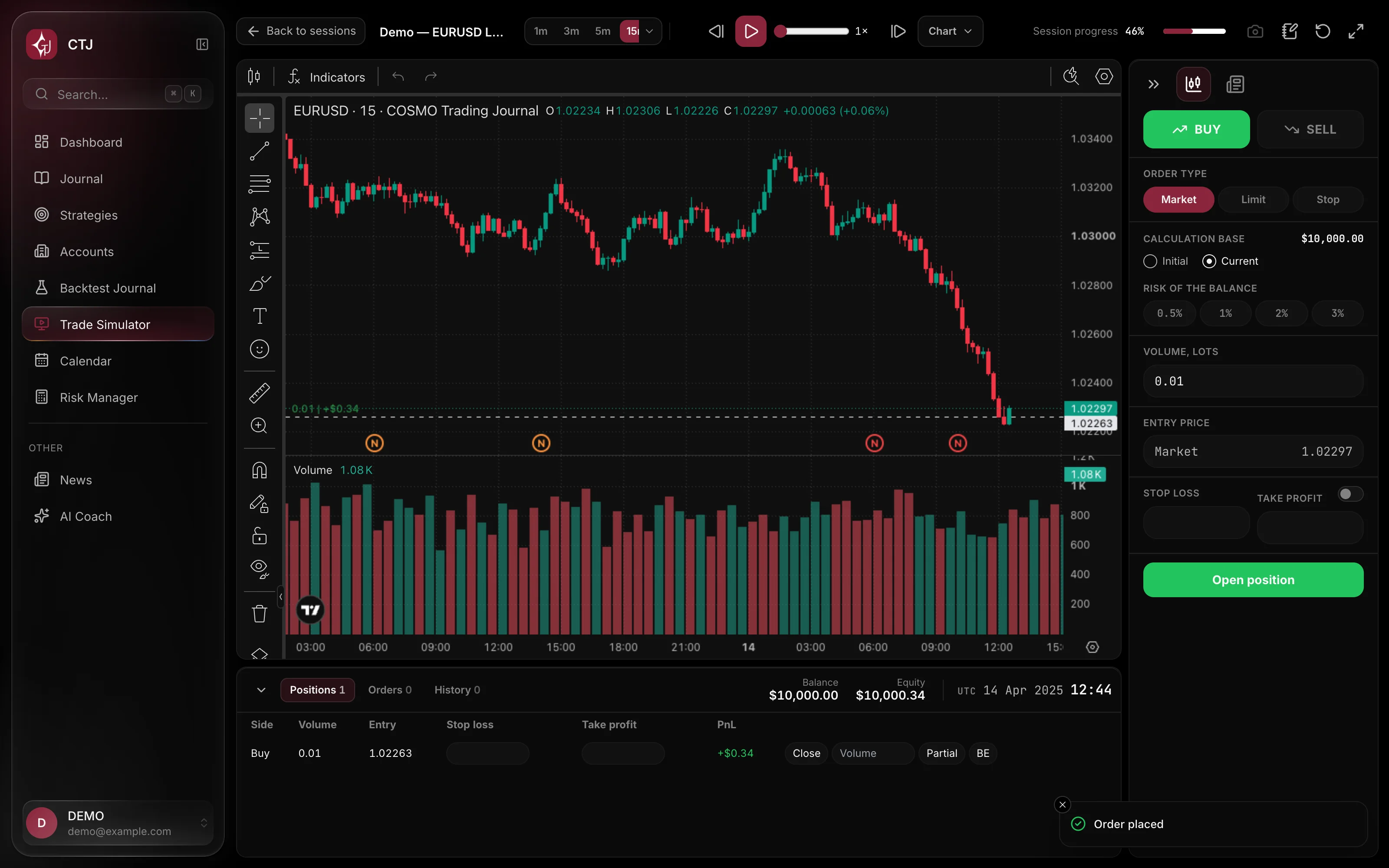
The strip under the chart opens into a table with three tabs: Positions, Orders and History, each with its number. opens and folds it, and a click on any tab of the folded strip opens it on that tab. It starts folded, to leave room for the chart.
7.8.2Open positions
Positions lists the open trades, with side, volume, entry, stop, target and P&L running as bars come in. You can type a new stop or target right in its cell. Each row has three buttons:
Close closes all of the position at the current price.
Partial closes part of it: type the volume into the field beside the button first. It is how you test taking some profit at the first target and letting the rest run.
BE moves the stop to the entry, to break even.
7.8.3Pending orders
Orders lists the limit and stop orders waiting for their price. Edit the entry, stop or target directly in the row. Cancel removes an order. When price reaches it, it turns into a position by itself.
7.8.4History
History lists every closed trade, with its side, type, volume, entry and exit, P&L and the reason it closed: Manual, Stop loss, Take profit or Session end. From here you can also send the trade to the journal, and the button then changes to In journal ✓.
Read also7.10 Sending a trade to the journal7.11.1 When the period is over