
Accounts
A label for where each trade was taken, so that results of different accounts never mix.
5.1The list of accounts
An account is a record you create yourself: CTJ does not connect to your broker.
5.1.1What an account is for
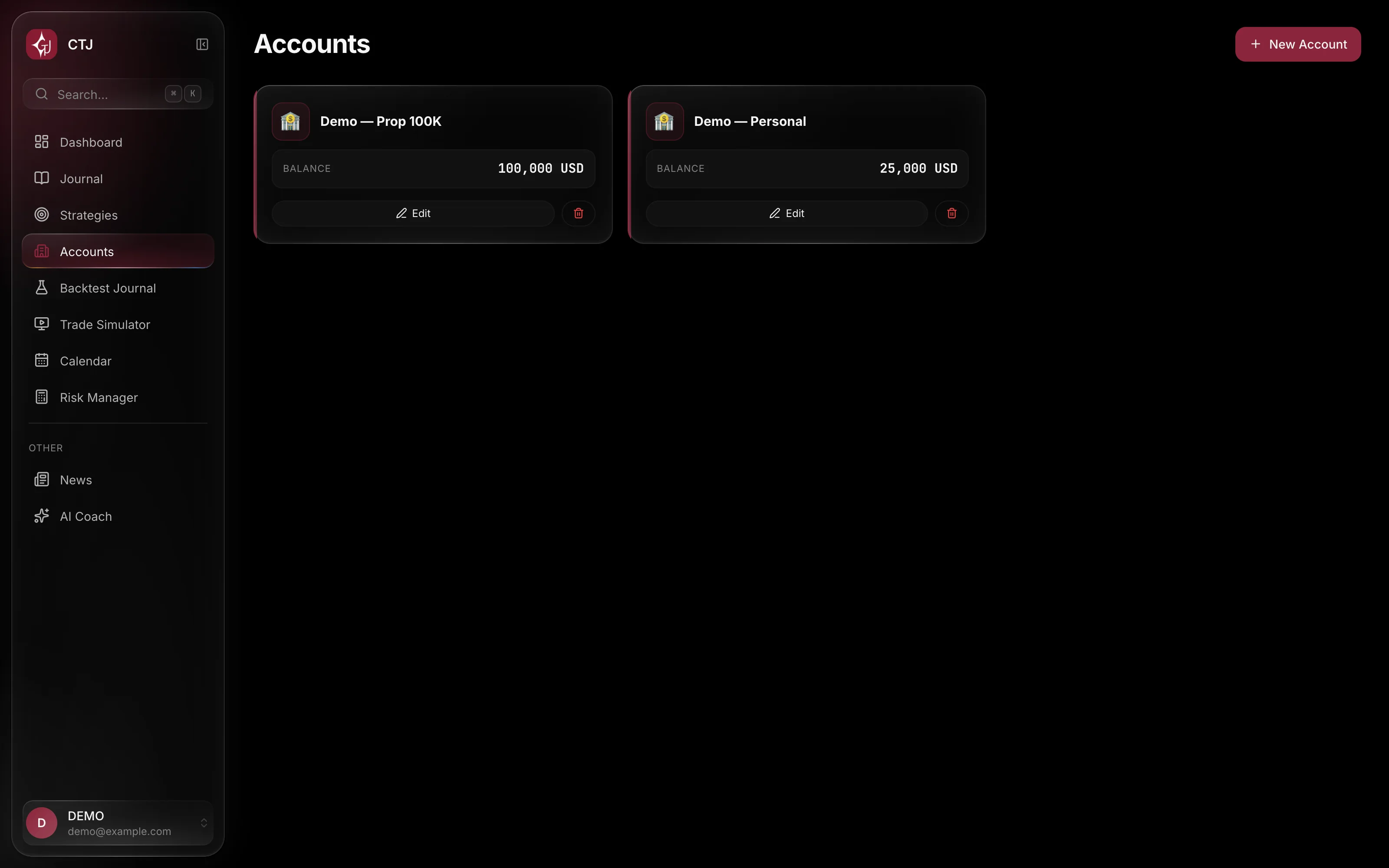
Accounts is the list of places where you trade. It can hold a personal broker account, a funded account, a demo or money you manage for somebody. You create an account by hand in a few seconds. CTJ does not connect to a broker and takes nothing from it.
Mixed results are hard to read. A day of 500 dollars means one thing on a funded account of 100,000 and another on a personal account of 5,000. When every trade says where it was taken, the Dashboard can show each account alone.
5.1.2The cards
A card shows the emoji, the colour, the name and the type of an account. Balance is the starting sum you entered. The beginning of your note and small copies of the pictures stand under it.
Edit opens the window of the account. deletes it. Deleting an account does not delete trades. They stay in the journal without this account. The pictures of the account are deleted with it.
The results of an account are on the Dashboard. Press its chip in the row Account to count the page for this account only. Double-click the account chip to open its summary, or select the account and click Details →. It has Net P&L, the number of trades, Winrate, PF, Avg RR and Max DD, counted from the starting balance of this account.
5.1.3How many you can have
Starter has 1, Just has 3, PRO MAX has 12 and VIP has 1,000. Accounts of the Backtest Journal have a separate count.
Read also5.2 The account window3.5.7 Account and strategy2.2.2 The window with details
5.2The account window
Name, type, starting balance, currency, emoji and colour, note and images.
5.2.1Filling in the window
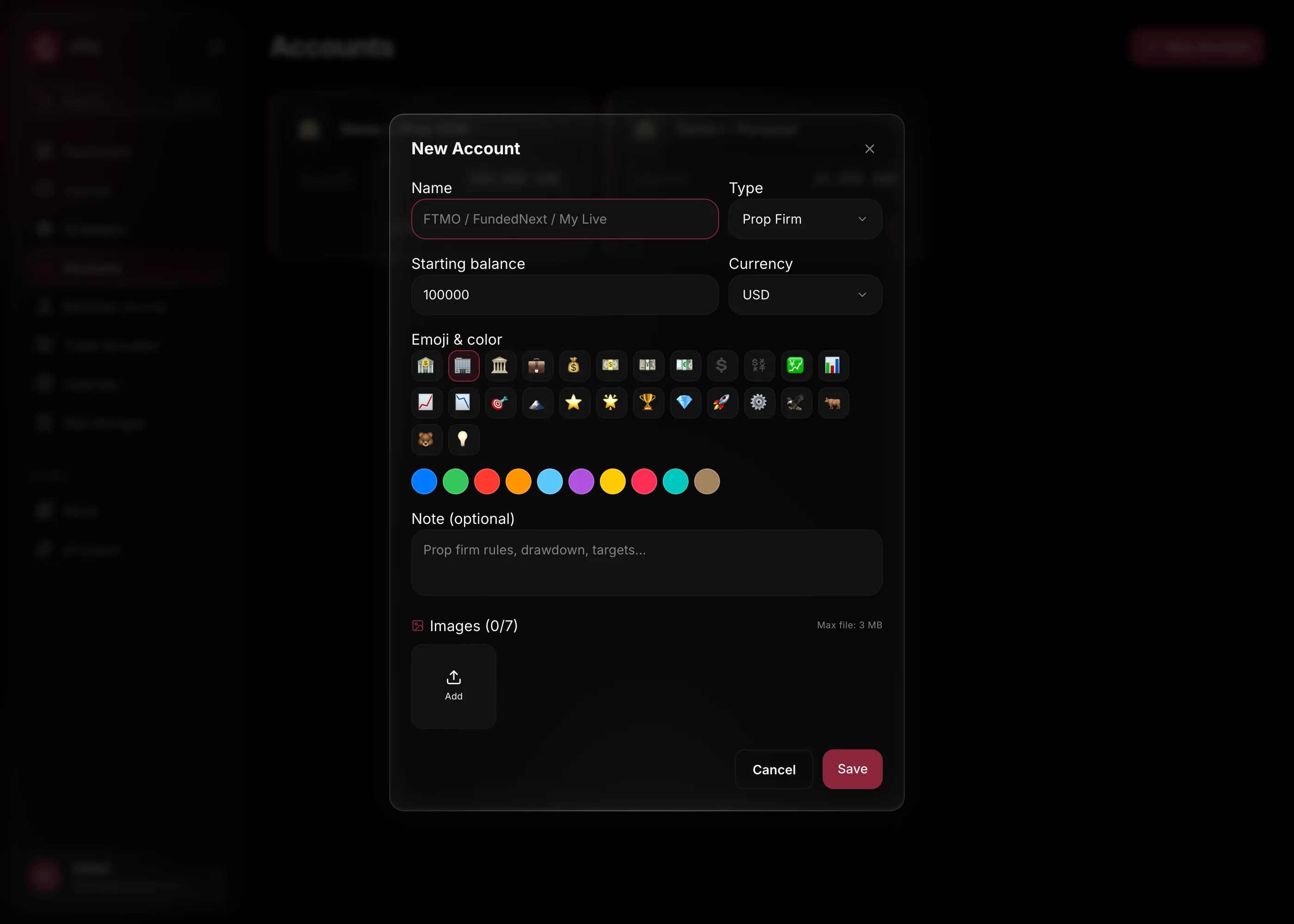
New Account at the top right opens the window. The name is the only required field. The defaults are Prop Firm, USD and a starting balance of 100,000.
- Name is visible in the trade form, in the table and on the chips. Make it short, for example Prop 100k.
- Type is Personal, Prop Firm, Demo or Managed. It is a label on the card and in the summary.
- Starting balance is the money the account started with. The drawdown in the summary of this account counts from it.
- Currency is USD, EUR, GBP, USDT or BTC. It stands beside the balance. Results of trades are in dollars, and nothing is converted.
The balance of the whole journal is another number. It is on the Account tab of the settings, and the Dashboard equity chart starts from it in With deposit mode.
5.2.2Look, note and images
Emoji & color has 26 emojis and 10 colours. Choose a pair you will recognise in a long row of chips.
Note (optional) is a plain text field for what you need to remember, for example the rules of a prop firm, the allowed drawdown or a target. The limit is 500 characters on Starter, 3,000 on Just, 12,000 on PRO MAX and 50,000 on VIP. The card shows the beginning of the note, and the summary on the Dashboard shows all of it.
Images is a tray for pictures, for example a screenshot of the rules. Press Add and choose a file. removes a picture. An account holds 1 on Starter, 3 on Just, 7 on PRO MAX and 10 on VIP. One file can have up to 1 MB on Starter, 1 MB on Just, 3 MB on PRO MAX and 3 MB on VIP.
5.2.3Connecting an account to your trades
An account begins to work when trades carry it. There are two ways.
- Choose it in the field Account of a trade.
- Set it as the default of a session. Every new trade in that session opens with the account filled in.
With one account for each session, the second way saves a step in every trade.
Read also3.2.5 Default strategy and account2.11.3 By account and by strategy