
Settings
Your account, Reader Mode, appearance, subscription, notifications and support.
12.1How to open them
Settings open from the menu of your profile at the bottom of the sidebar.
12.1.1How to get here
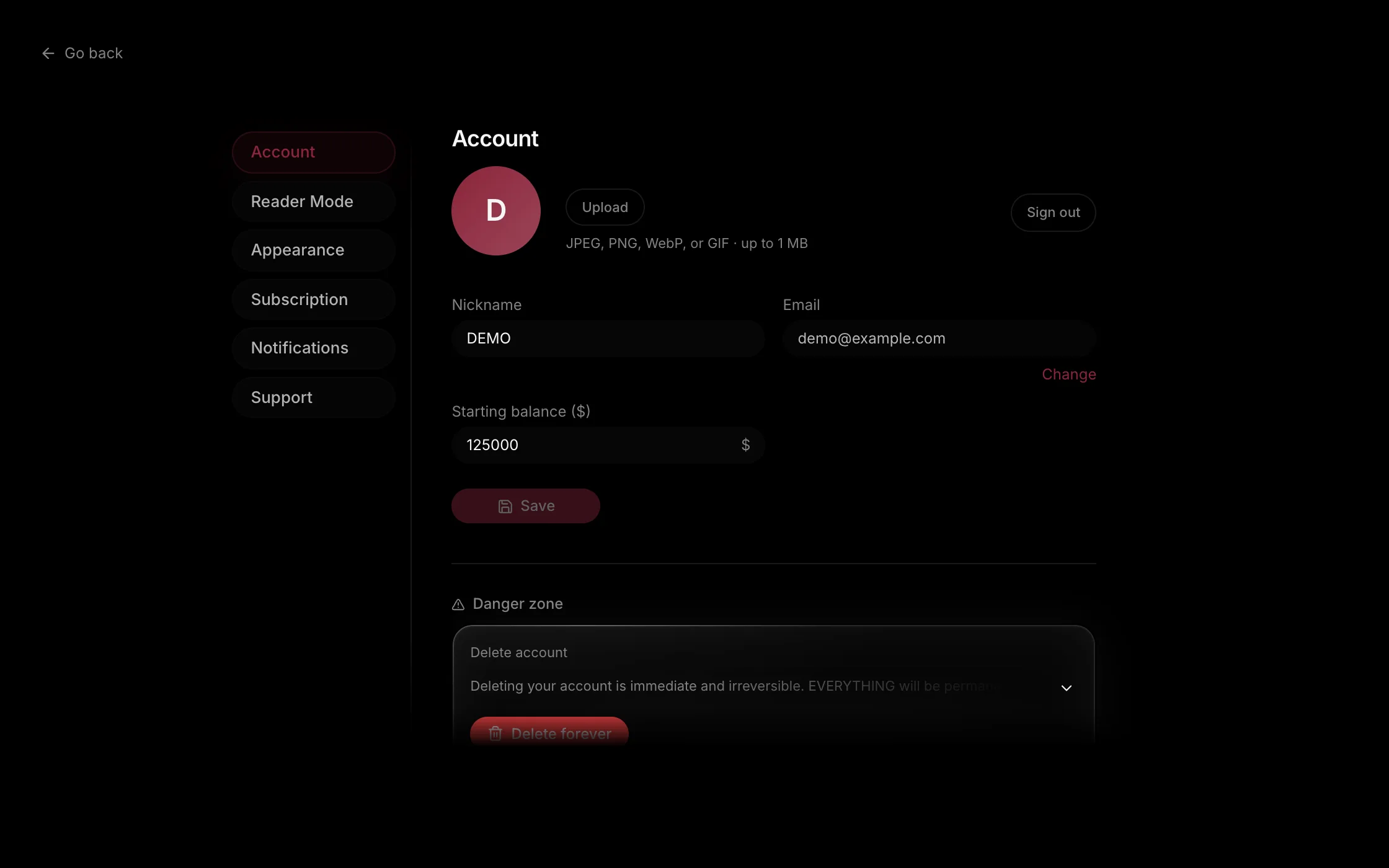
Settings is one tab with six sections of its own. To open it, click your name at the bottom of the sidebar and choose Settings in the account menu. Go back, at the top, returns you to the screen you came from.
The sections are on the left: Account, Reader Mode, Appearance, Subscription, Notifications and Support. Each is described below in the same order.
Read also1.4.3 The menu of your profile
12.2Account
Picture, nickname, email, starting balance, signing out and deleting the account.
12.2.1Profile picture
At the top you can upload a picture for your profile. It is cut to the central square automatically and shrunk, so an ordinary phone photo fits. Click your saved photo to preview it at a larger size. Use Upload to replace it or Remove to delete it. Without a picture, the app shows your initial in a circle.
12.2.2Nickname
Nickname is the name you chose at sign-up, and you can sign in with it. To change it, type a new one: the field checks as you type and shows Available or Taken, with the same rules as at sign-up. Press Save to apply it.
12.2.3Email
Email shows your current address. Select Change to open the email change window.
- Select Request a code to change the e-mail. The window confirms the request. You can close it while waiting for the message at your current address.
- Select Enter the code in the same window or reopen it through Change. Enter the first code from the message and select Confirm.
- Once the code is confirmed, enter your new address and select Next.
- Enter the code from the message at your new address and select Change e-mail. You can also select Send the code again or, while available, Use another e-mail. If the address is already in use, choose a different one.
The window shows the new address when the change is complete. If you cannot change your email again yet, it shows when you can.
Your old address remains active until the change is complete. You will need to sign in again on your other devices. Both addresses receive a notification.
12.2.4Starting balance
Starting balance ($) sets the starting point for the equity chart in With deposit mode. In that mode the balance also affects return, drawdown and related figures. Risk Manager uses it as the default account balance when opened.
If you deposit or withdraw money, there is no separate entry for that. Decide what you want to measure: many people leave the original balance as it is, so that the chart shows the result of their trading alone.
Do not confuse this with the balance of an account or of a session: those are for the details of that account and for the card of that session.
12.2.5Signing out
Sign out signs you out on this computer. The same button is in the account menu.
12.2.6Deleting your account
The delete button is under Danger zone. Once your account is deleted, you cannot recover your profile, trades or uploaded files. If you have an active subscription, the app cancels it first. See the Privacy Policy for how backups and payment records are retained.
To protect you from an accident, it takes three steps. First, type your current nickname exactly. Then, type the word delete or удалить. Finally, confirm once more. Only then does the erasing begin, with a progress display on screen, and after that you land on the home page of the site.
Read also12.5 Subscription1.2.5 Step 2, nickname and password
12.3Reader Mode
Show your journal to a mentor without giving them your account, and take the access back at any time.
12.3.1What Reader Mode is
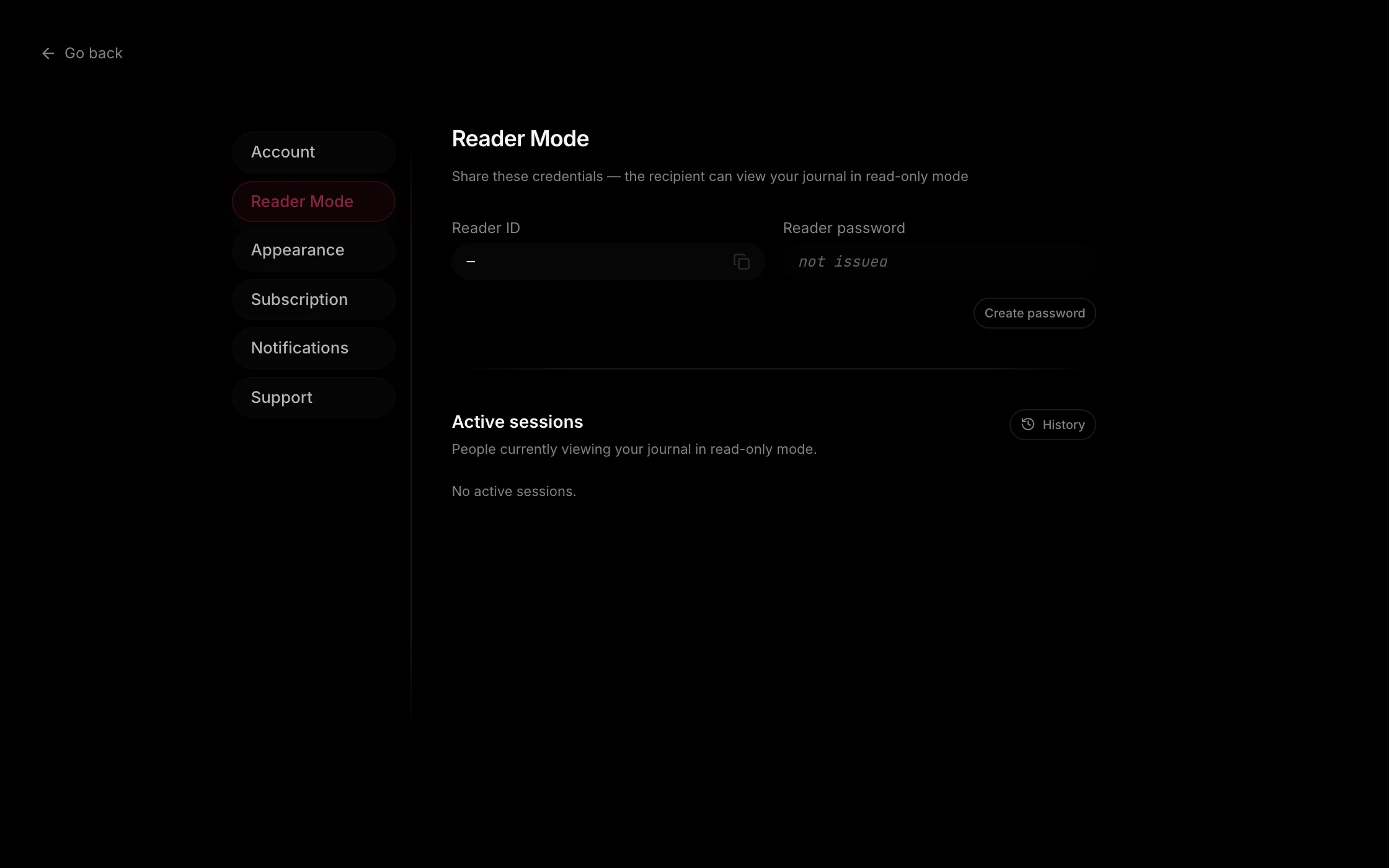
Reader Mode lets you show your journal to someone without giving them your account: a mentor, a coach, a friend from a trading group. They see your real statistics and trades, and they cannot change anything. It is available from the Just plan; on Starter, the tab offers you an upgrade.
12.3.2Creating access
The tab shows a Reader ID, which is made for you. Press Create password to make a Reader password. Each field has a copy button . Use the eye button to show or hide the password. Send these two values to the person you want to give access to.
They go to the sign-in screen, press Reader Mode, enter the ID and password with their name and email, and they are in.
12.3.3What a reader sees
Readers can open Dashboard, Journal, Strategies, Calendar, Risk Manager and News. They can filter trades by account on the Dashboard. The separate Accounts tab and its notes and images are for the owner.
In the Journal, readers can view the full list and open visible sessions. The owner can add, edit and delete entries. Readers can open strategies and trade images for viewing.
When the owner clicks the eye on a session, that session appears or disappears for readers within a few seconds. If a reader has the session open when it is hidden, they return to the full list. A trade in hidden sessions only disappears from both the journal and statistics. A trade that also belongs to a visible session stays visible.
The Backtest Journal, Trade Simulator and settings are private. Readers lose access if the owner switches to Starter.
12.3.4Who is looking
Active sessions lists People currently viewing your journal in read-only mode, by name and profile picture. A green dot marks readers who are online. Kick ends a session. In History, select Details for a past session to see the reader's email and device, when they joined, when they were last seen, when the session ended and how long it lasted.
How many readers can be active at once depends on the plan: 3 on Just, 12 on PRO MAX and 100 on VIP. Beyond that, a new reader sees a message that you have reached your limit.
12.3.5Taking access back
Change password generates a new password and ends active reader sessions. Share the new password to restore access. Delete password also ends all sessions. Readers can sign in again after you create a new password.
Read also1.2.10 Reader Mode on the sign-in screen3.1.6 Hiding a session from the statistics
12.4Appearance
Themes, language, time zone and where your equity chart starts.
12.4.1Themes
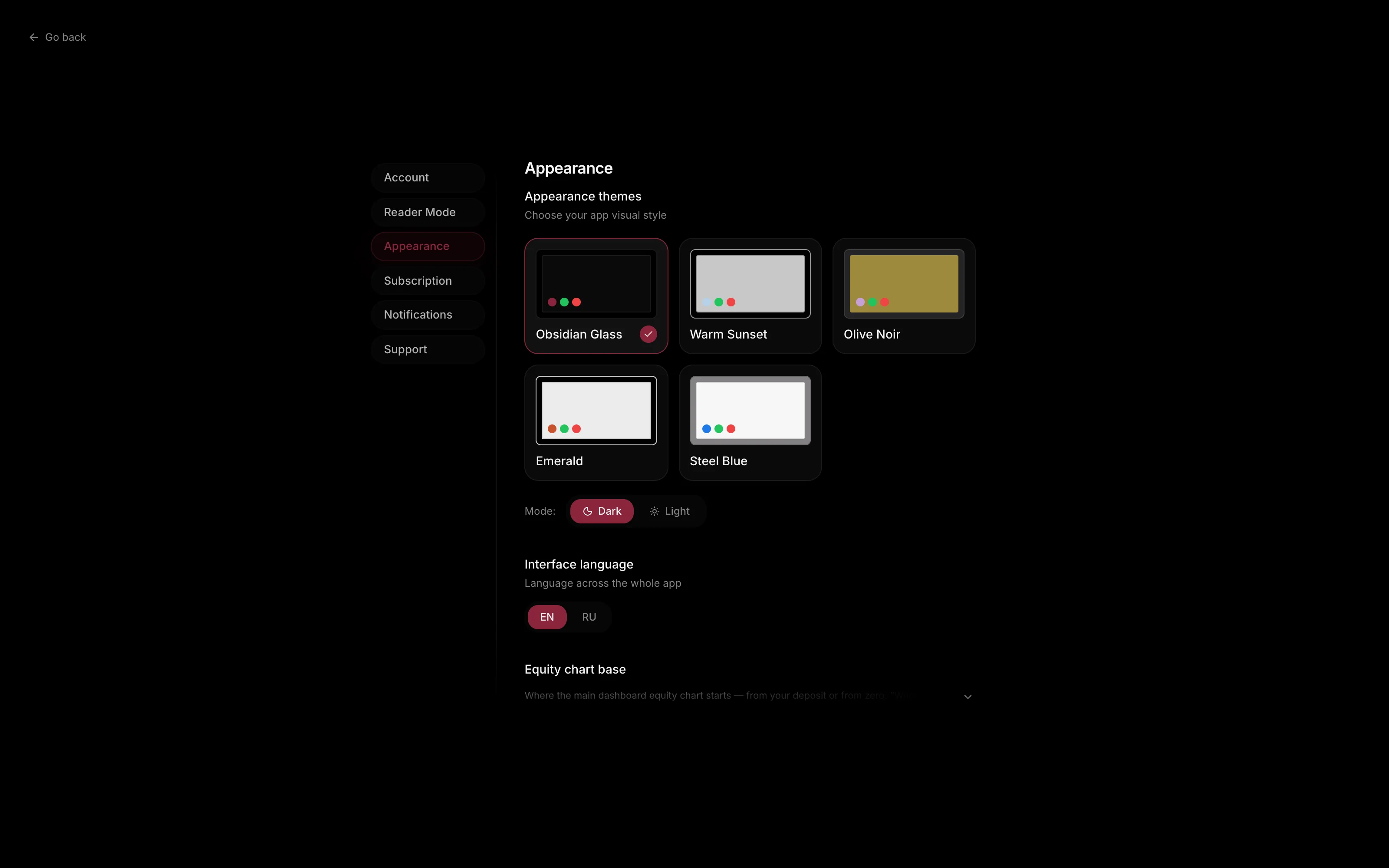
Appearance themes shows five themes as small previews of the app: Obsidian Glass, Warm Sunset, Olive Noir, Emerald and Steel Blue. Click a preview to apply the theme. Starter includes the first theme (1). A lock marks the other themes, which are available from Just.
Use Mode under the themes to select Dark or Light. Light mode is available for Obsidian Glass. The other themes use dark mode. The switch in the account menu controls the same setting.
12.4.2Interface language
Interface language switches the whole app between English and Russian, and the choice stays with your account. The same switch is in the account menu.
12.4.3Time zone
Time zone matters more than it looks. Set the zone you trade in, and the times you enter are read in that zone, the trading session of each trade is worked out correctly, and the simulator uses it by default. You can choose a different time zone for the simulator chart and clock in the simulator. The default, Auto — same as browser, takes it from your computer.
A saved trade keeps the time zone it was entered in. Changing the app setting later leaves that trade's time as it was.
12.4.4Equity chart base
Equity chart base says where the curve on your main Dashboard starts. With deposit uses your starting balance and follows your capital after each trade. From zero ignores the deposit and shows only the sum of your results. Drawdown and the figures built on it follow the same choice. Choose From zero if your deposit changes often, or if you trade several accounts and a single starting number would mean little.
Below it there is the same choice for the Backtest Journal, Equity chart base — Backtest Journal. There With deposit starts at a fixed $10,000, since a backtest has no real deposit. Each session's card has its own switch, independent of both.
Read also2.4.5 Starting from the deposit or from zero3.5.2 Time
12.5Subscription
Your plan, its space for all time, the payment portal with cancellation, payment history and legal documents.
12.5.1Your plan
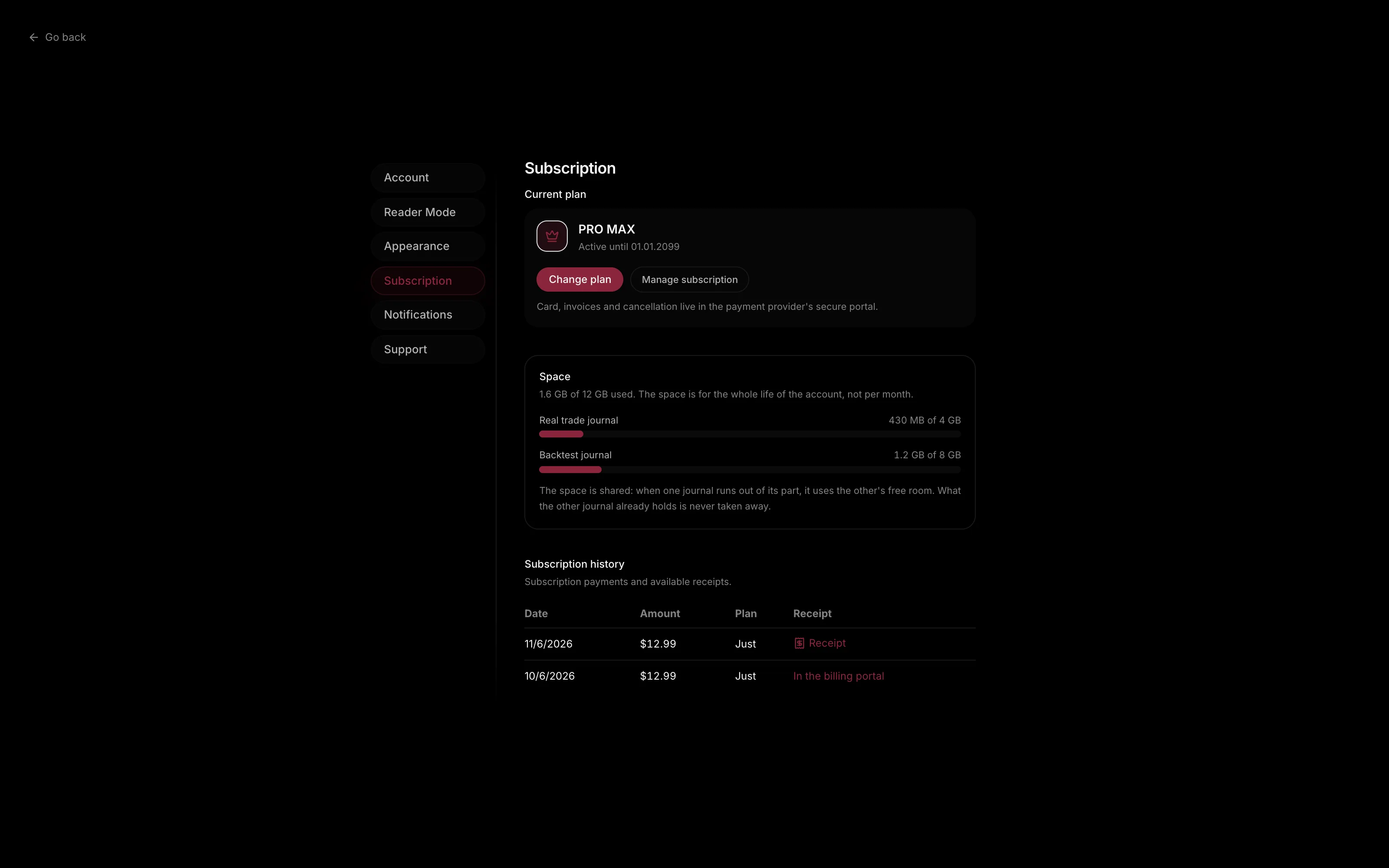
Current plan shows your plan and its status, for example how many days are left in the trial. Change plan opens the plan window with the same cards as at registration. The full list of limits is on the pricing page.
12.5.2Your plan's space
Space shows how much of the plan's space is used. The space is for the whole life of the account, not per month, and has two bars: Real trade journal and Backtest journal. It holds your screenshots and pictures and the text of your trades, strategies and accounts. The bars update by themselves while the tab is open. When one journal runs out of its part, it uses the other's free room, and the line under the bars says how much it took. The bars turn red when all of the plan's space is used: new trades and files then wait until you delete some or move to a higher plan. Filling the space does not delete saved data.
12.5.3Managing a subscription
Manage subscription opens the secure portal of the payment provider, where your card, your invoices and cancellation live. CTJ itself never sees your card number. If there have been no payments on the account yet, the button says there is nothing to manage. Right after paying, it may ask you to try again in a few seconds, while the subscription is still syncing.
You can cancel at any time. After cancelling, you keep your plan until the end of the paid period, and then your limits drop to those of Starter.
12.5.4Your VIP card
On the VIP plan, select My VIP card to edit your member card. Enter a public name or nickname. You can add a country, a photo and a description of up to 120 characters. Use the switches to show the card photo, trader score, account balance and best assets. Confirm that you agree to publish the selected details before saving. The card image does not change your profile picture.
12.5.5History and documents
Subscription history sits below the storage card. Each row shows the payment date, the amount charged in the original currency, the plan you bought and an option for the receipt. A direct link opens the receipt in your browser when available. In the billing portal opens the payment portal, where you can find payment documents.
Below are links to Terms, Privacy, Refunds and Pricing. Under the refund policy, you can request a refund for a subscription payment within 7 calendar days of the charge.
Read also1.6 Limits, and the end of a trial1.3 Choosing a plan
12.6Notifications
The inbox inside the app, and which emails you receive.
12.6.1Messages inside the app
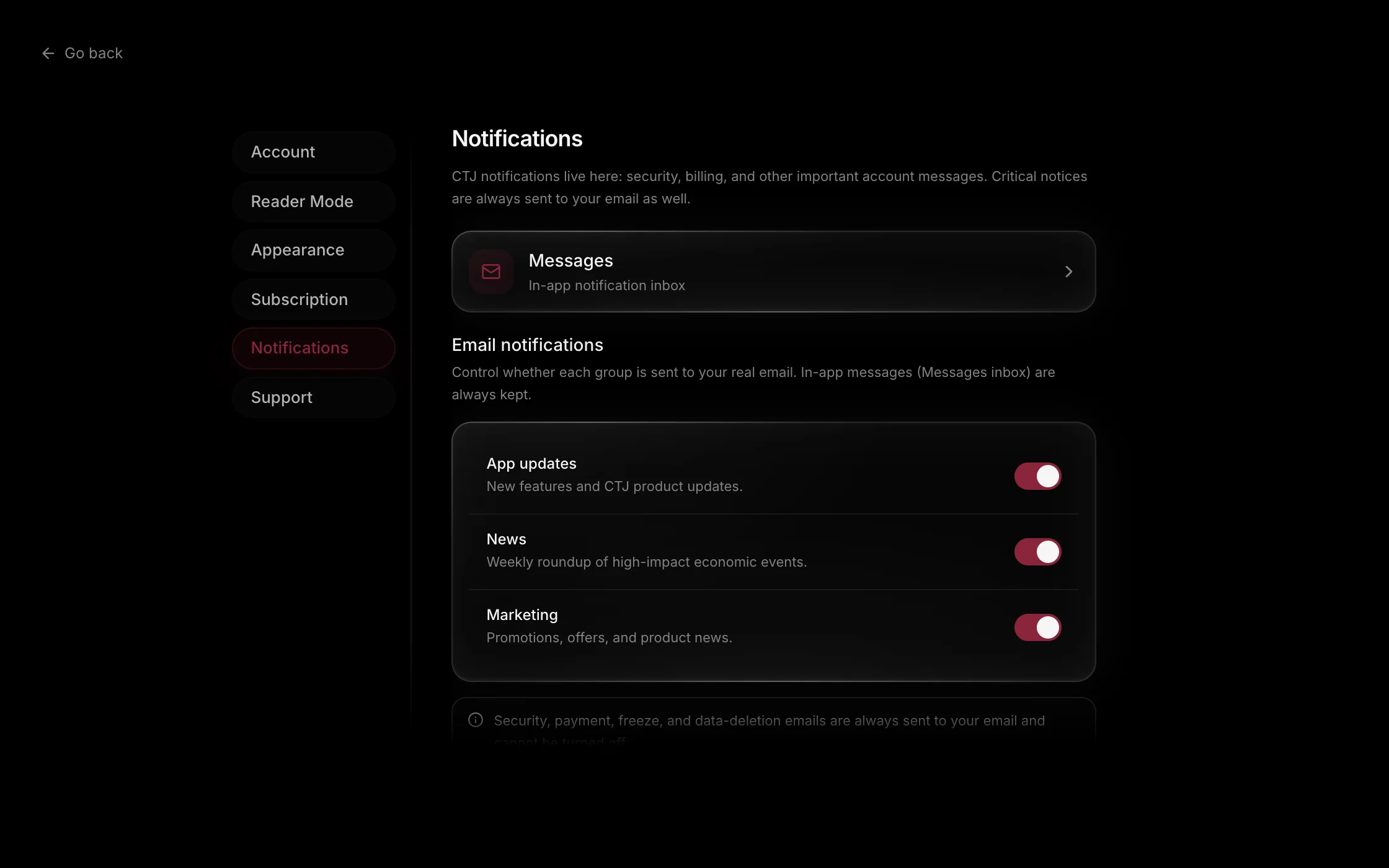
In Notifications, select Messages to open the inbox for security, billing and account messages. Unread ones are marked, and opening one marks it as read. Load more brings older ones.
To clear the app inbox, select Clear, enter delete and select Clear permanently. Copies sent to your email address remain in your inbox.
12.6.2Email
Email notifications has three switches for what goes to your real inbox:
- App updates: new features and product updates.
- News: a weekly roundup of high-impact economic events.
- Marketing: promotions, offers and product news.
Messages about security, payments, freezes and data deletion are always sent, and they cannot be turned off, because missing one of those could cost you your data. Turning a switch off does not touch the in-app inbox.
Read also12.2.3 Email1.6.4 When a trial or a subscription ends
12.7Support
Three email addresses for questions, bugs and ideas.
12.7.1Three addresses
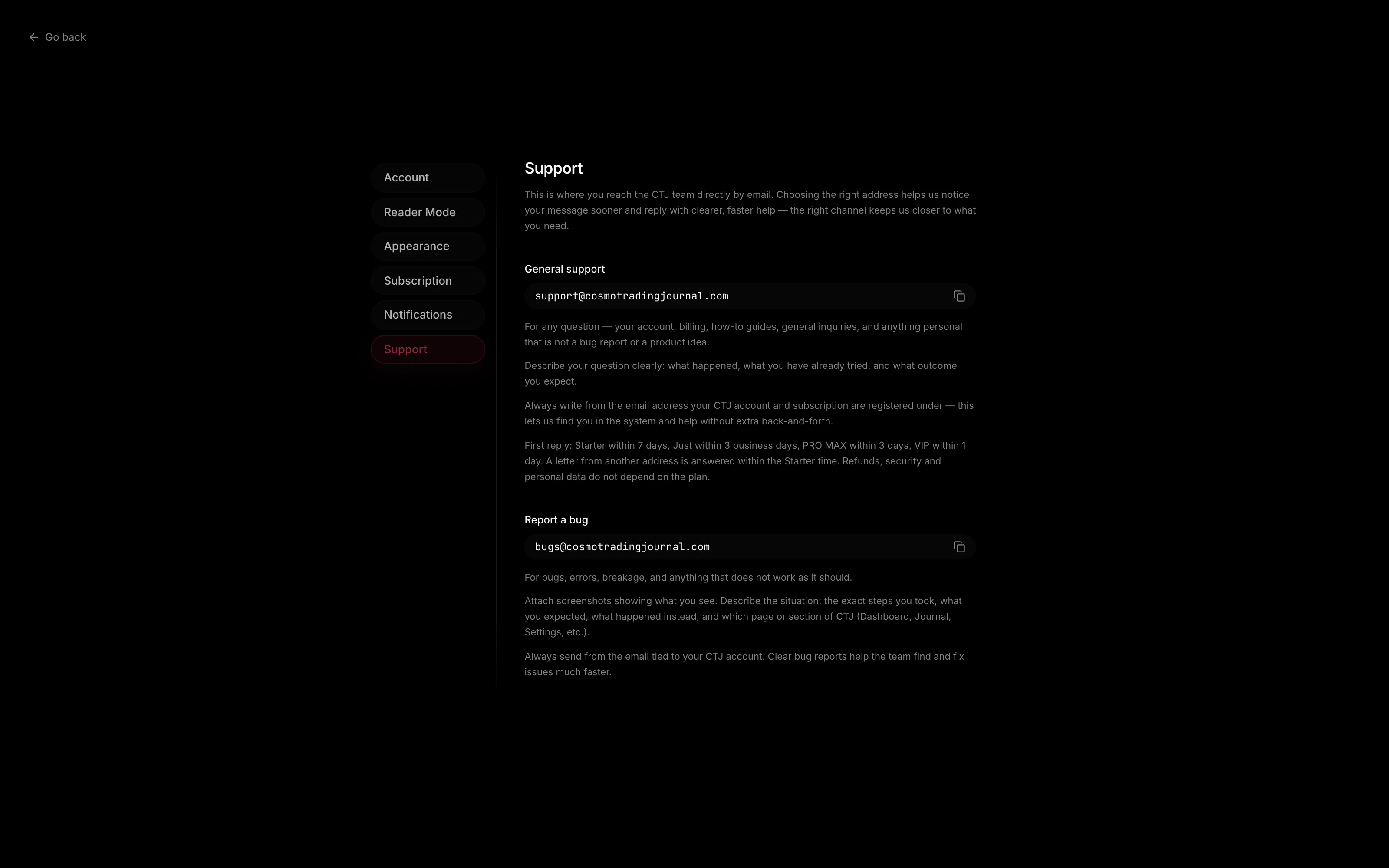
Support is how you reach the team, by email only. There are three addresses, and each has a copy button:
General support, [email protected], is for any question about your account, billing and how to do things. Say what happened, what you have tried and what you expect.
Report a bug, [email protected], is for errors and anything that does not work as it should. Attach screenshots, list the exact steps you took, what you expected, what happened instead, and which part of the app you were in.
Ideas & suggestions, [email protected], is for what you wish existed. Describe the idea and why it would help your trading.
12.7.2One rule that saves time
Always write from the email address your account is registered under. That lets the team find you straight away, without any back-and-forth, and send its first reply within your plan's timeframe: Starter within 7 days, Just within 3 business days, PRO MAX within 3 days, VIP within 1 day. For messages from another address, the Starter timeframe applies. Refunds, security and personal data requests are handled regardless of your plan. Choosing the right one of the three addresses gets your message to the right place sooner.
Read also12.2.3 Email