
Sending a trade to the journal
Save a closed position to the Backtest Journal from a window floating over the chart, with snapshots.
7.10.1Sending a trade to the journal
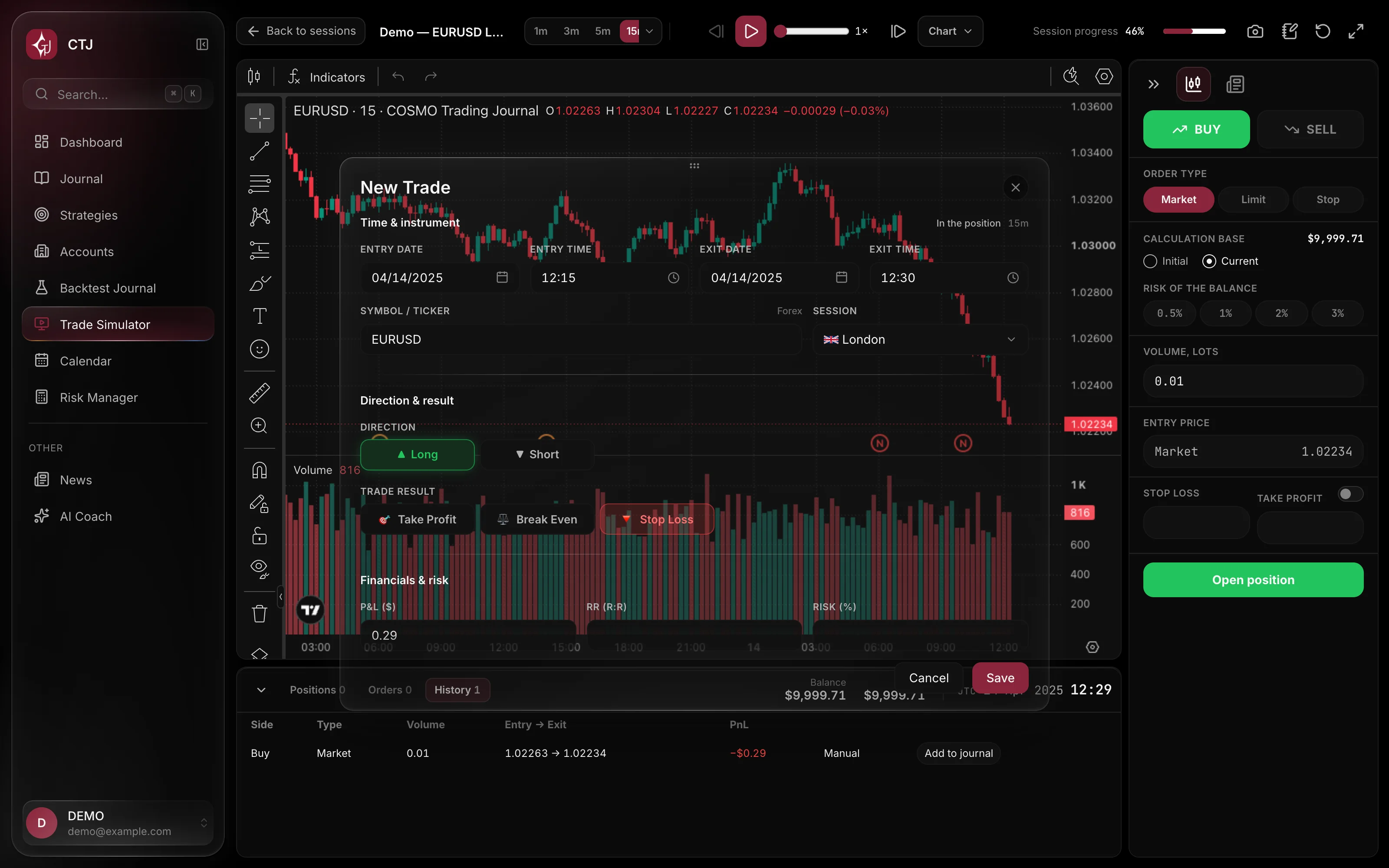
Positions closed in the simulator are already counted in its statistics. But sometimes a trade deserves a real write-up, with notes and pictures. For that, you send it to the Backtest Journal. The toolbar’s journal and snapshot buttons and saving from History are available from Just. On Starter, those buttons show a lock.
There are two ways. In History, press Add to journal on a closed trade. Or use the button in the top bar: with a closed position selected, it opens a prefilled form. Without a selection, it fills in the instrument and any linked strategy. A small menu asks which Backtest Journal session to put it in. If you have no sessions yet, it suggests creating one first.
7.10.2The window over the chart
The New Trade window is the same form as in the journal, filled in from the position: dates and times, instrument, direction, result, P&L. What makes it special is that it floats: there is no dark layer behind it, so the chart stays usable. Drag it by its top edge anywhere you like, and scale it with its corners from 85% up to full size. The app remembers where you left it. Only one such window can be open at a time.
7.10.3A snapshot of the chart
While that window is open, the Take snapshot button in the top bar takes a picture of the chart as it is at that moment and adds it to the trade's screenshots, with the timeframe of the chart filled in. Switch timeframes and take another, and you have the higher timeframe and the entry in one trade. It takes one second and turns a line in a table into a real record.
7.10.4If it is already there
A closed position can be saved to the journal only once. Selecting it again opens the saved trade for editing. If you later delete the trade in the journal, the link is forgotten, and the button offers to add it again.
Read also6.3.10 Trades coming from the simulator3.5.10 Screenshots