
Journal
Where you record real trades: sessions, the table, every field of a trade, notes, screenshots and drawing on pictures.
3.1Sessions
Trades live in named sessions with their own small dashboards, and the Main Archive holds every trade.
3.1.1Why trades live in sessions
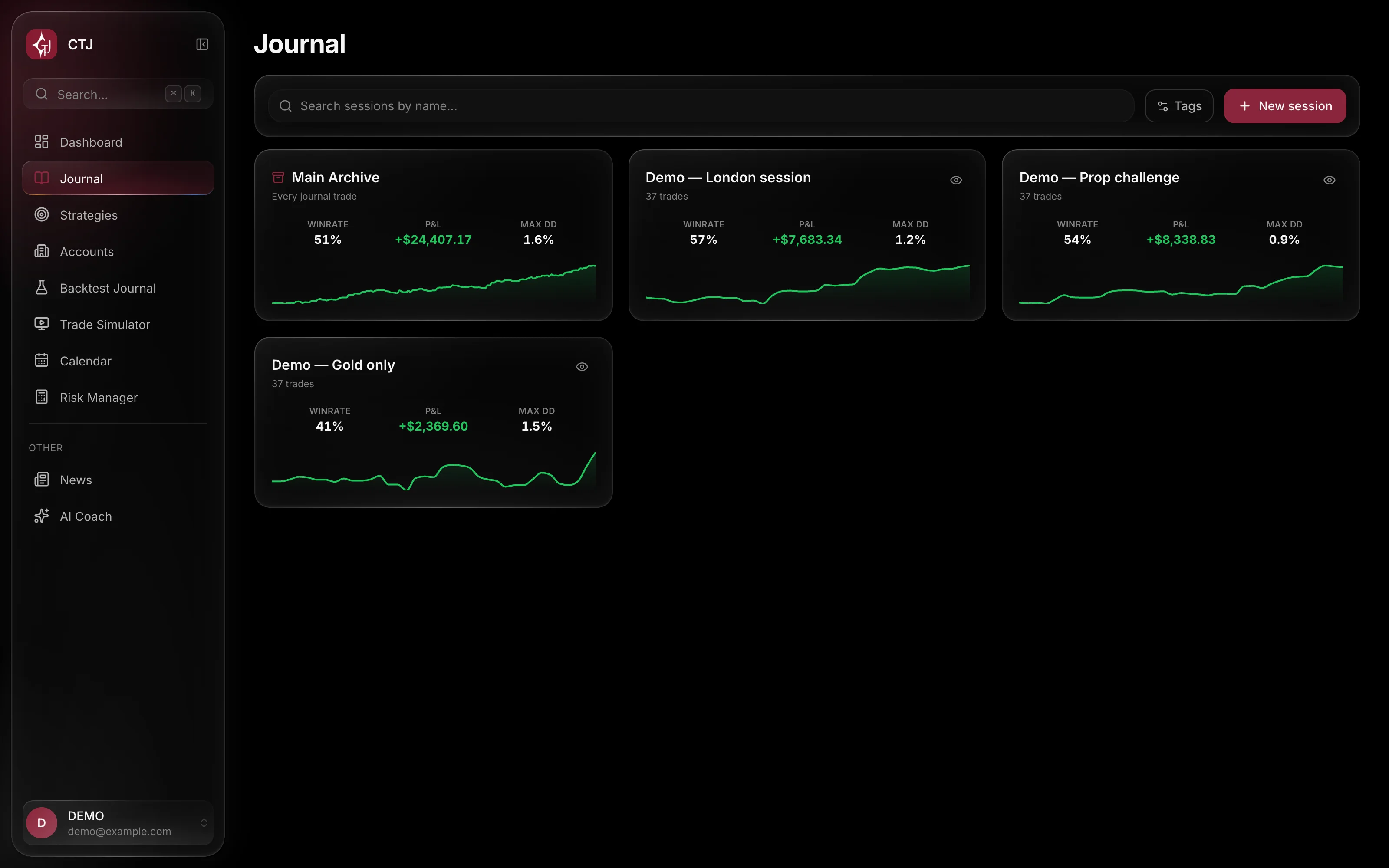
Journal is the place where you record real trades. It opens with a grid of cards. Each card is a session, a named set of trades with its own figures and its own small chart. A session can be a month, a setup, a funded challenge, an account or a week of trading by a new rule.
One long list does not show whether June went better than May. With a session for each month, two cards answer the question.
3.1.2The Main Archive
The first card is always Main Archive, with the words Every journal trade. Every trade you record goes here by itself, from whichever session you add it. The archive does not count towards the number of sessions on your plan.
The archive shows trades except those that belong only to hidden sessions. You can search and filter trades, open screenshots and delete trades here. If you have your own sessions, also lets you change session links from the archive. New trades and edits are made inside your own sessions. The archive has no settings, no eye button and no button New Trade.
3.1.3What a card tells you
A card shows the name of the session, the number of trades and three figures. Winrate is the share of winning trades. P&L is the result in dollars. Max DD is the deepest drawdown in per cent. The small chart under them shows how the balance of the session moved.
Up to four tags fit on a card, and +2 means that two more are attached. The figures come from the trades of this session and from its own starting balance, so cards do not affect each other.
Click a card to open the session. Your own sessions stand in the order you created them.
3.1.4Creating a session
New session at the top of the page opens a window with six fields. Only the name is required.
- Name has up to 80 characters, for example London session.
- Starting balance is the sum the figures of the card count from. An empty field means the balance from your settings.
- Instrument is a free note about what you trade here, up to 60 characters.
- Strategy is filled in for you in every new trade of this session.
- Account is filled in for you in every new trade of this session too.
- Description has room for a plan or conditions, up to 500 characters.
Create adds the session to the grid. You can change every field later in the settings of the session. Tags are attached there too.
The number of sessions depends on the plan. Starter has 2, Just has 7, PRO MAX has 32 and VIP has 1,000. When trades, sessions or tags are nearly at their limit, a strip Plan limits appears above the cards. The button Upgrade plan on it opens the plan window.
3.1.5Finding a session
Search sessions by name… looks through the names of sessions and the names of their tags. The grid changes with every letter.
The row Filter by tags: appears after you create the first tag. Press a tag to see the sessions that carry it. Press several tags to see the sessions with any of them. Clear turns all of them off. The search and the tags work together. Hidden sessions are found too, and the Main Archive always stays on screen.
3.1.6Hiding a session from the statistics
Every card of yours has an eye button . Press it, and the session becomes hidden. The card turns pale and gets the mark Hidden. Press the eye again, and everything returns at once.
A hidden session is not deleted. You can open it and work in it. Its trades leave the statistics in this way.
- The Dashboard and the Calendar stop counting them.
- They leave the list of the Main Archive.
- The search in the sidebar does not find them.
A trade that also belongs to a visible session stays in all these places. Hide a session to keep an experiment or a period of learning away from your real results.
3.1.7A locked session
After a paid plan ends, the account can hold more sessions than Starter allows. The extra sessions get the mark Locked and do not open. Their content stays in place for 60 days. A payment opens these sessions at once, exactly as they were.
Read also3.2 Session settings3.4 The table of trades1.6.4 When a trial or a subscription ends
3.2Session settings
Name, tags, starting balance, default strategy and account, chart base, and deleting a session.
3.2.1Opening the settings
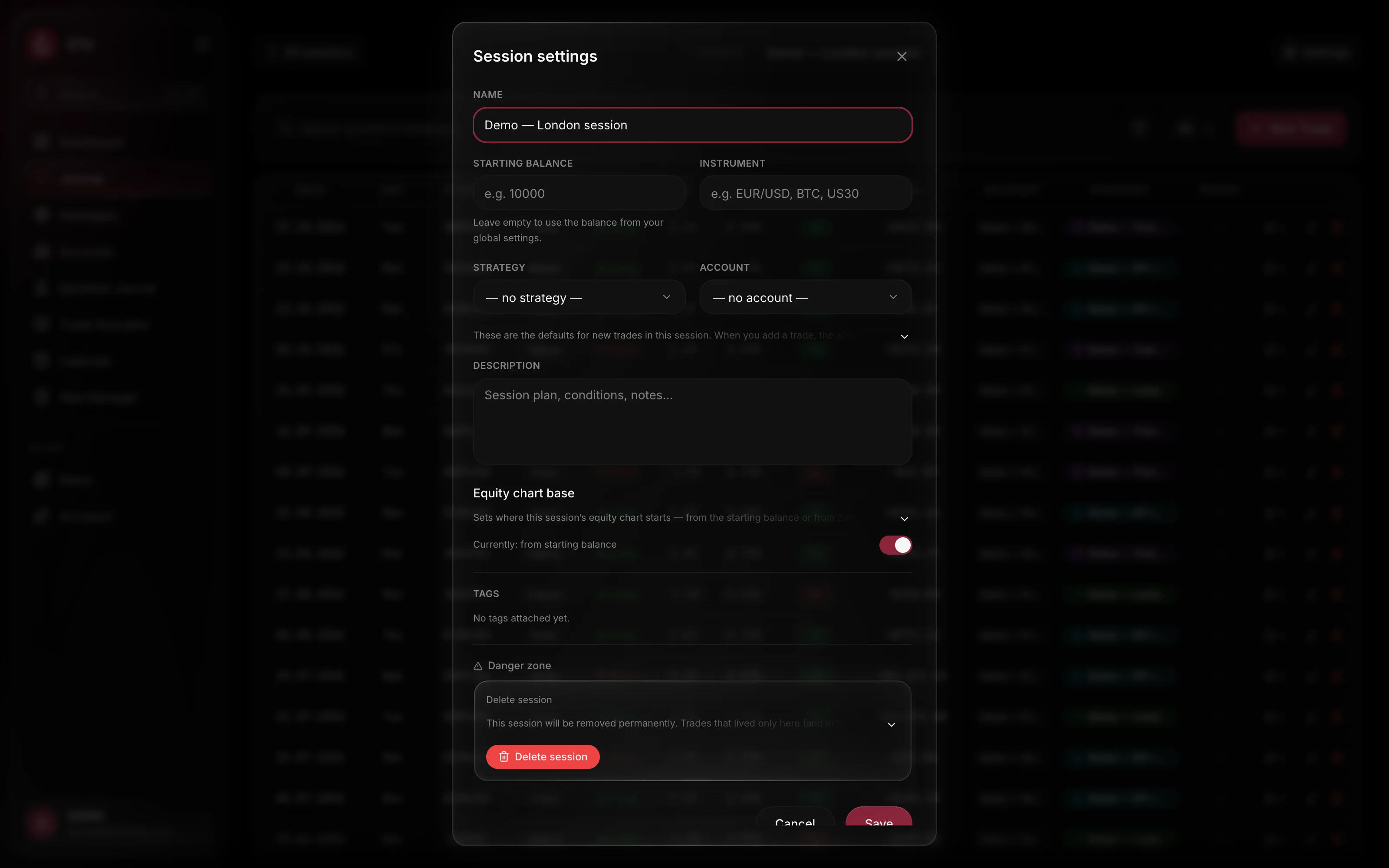
Open a session and press Settings at the top right. The window holds everything about the session itself. The fields take effect after Save. Tags and deleting work at once, without Save.
3.2.2Name, instrument and description
Name is the title on the card, up to 80 characters. Instrument is a free note about what the session trades, for example EUR/USD or US30, up to 60 characters. Description holds a plan, conditions or notes, up to 500 characters. These three fields are for you and do not change any numbers.
3.2.3Tags
The part Tags shows the tags of this session. Attach tag opens the list Available tags. Press a tag with a plus to attach it. Press a tag with a cross to take it off. Done closes the list.
A new tag is created in the window Manage tags, behind the button Tags above the session cards.
3.2.4Starting balance
Starting balance is the sum the figures of this session count from. A challenge on 100,000 dollars needs its own base, or its percentages would be counted from your personal balance.
An empty field means the balance from the Account tab of the settings. The field changes the card of this session only. The Dashboard keeps its own base.
3.2.5Default strategy and account
Strategy and Account are the defaults for new trades in this session. If you set a strategy, the new trade form fills it in. If the session has no default account, the form uses your first account, if you have one. You can change or clear either field. The defaults do not touch trades you have already added.
Use them when a session has one setup and one account. Each trade then gets to the right account and strategy on the Dashboard without extra work. More about binding in the window repeats these rules.
3.2.6Equity chart base
The switch Equity chart base sets where the small chart on the card begins.
- On, the chart starts from the starting balance. The line under the switch says Currently: from starting balance.
- Off, the chart shows the sum of the results and leaves the deposit out. The line says Currently: pure P&L from zero.
Max DD on the card follows the same base. Trades do not change. The chart of the Dashboard has a separate switch on the Appearance tab of the settings.
3.2.7Deleting a session
Delete session stands in the Danger zone at the bottom of the window. A trade that lived only in this session is deleted with it for good, from the Main Archive too, with its notes and screenshots. A trade that also belongs to another session stays there.
Deleting is confirmed with I understand, delete and cannot be undone. To take a session out of the statistics and keep it, press the eye on its card.
Read also3.1.6 Hiding a session from the statistics3.7 One trade in several sessions12.2.4 Starting balance
3.3Session tags
Coloured labels that keep many sessions in order and filter the grid.
3.3.1What session tags are for
Tags are short coloured labels on sessions, for example funded, scalping or 2026. They help you keep many sessions in order. A tag is visible on the card and in the row Filter by tags: above the cards.
Session tags are yours to invent. The psychology tags inside a trade are another thing. They mark emotions and mistakes and come from a fixed list.
3.3.2Managing tags
The button Tags above the cards opens Manage tags.
- Type a name into New tag…, up to 40 characters.
- Choose one of the eight colours.
- Press Create.
Every tag in the list has two buttons. opens its name and colour for a change. deletes it. A deleted tag leaves every session that had it. The sessions and their trades stay.
Two tags cannot have the same name. The plan limits the number of tags and the number of tags on one session. Starter has 3 and 2, Just has 12 and 7, PRO MAX has 48 and 12, VIP has 1,000 and 100. Tags of the Backtest Journal are separate and have their own count.
Read also3.1.5 Finding a session3.2.3 Tags
3.4The table of trades
Columns, search, filters by day, month, date, outcome, strategy and account, and the order of trades.
3.4.1The table of trades
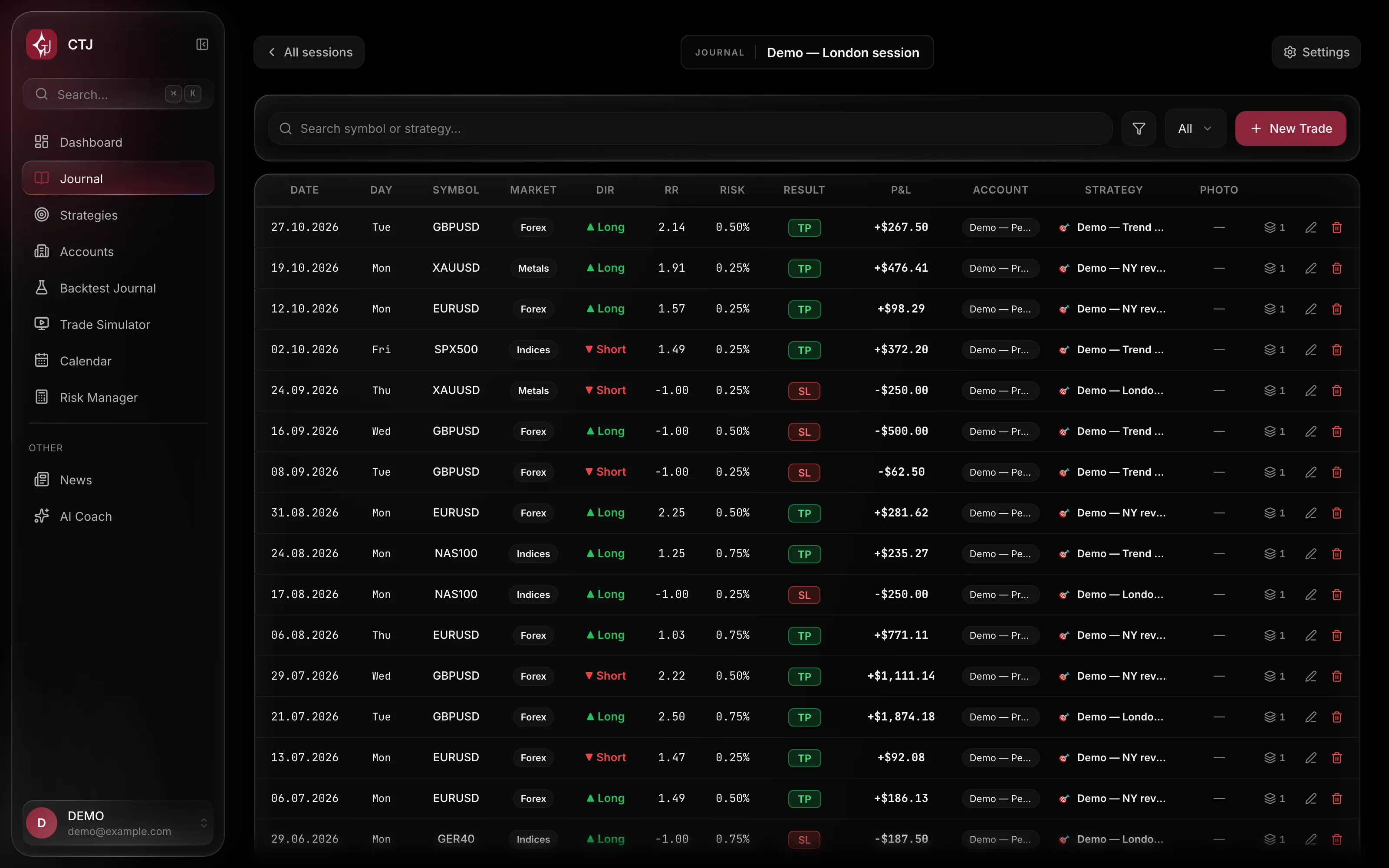
Inside a session the trades stand in a table, one row for each trade. The plate in the middle of the top line shows the name of the session. All sessions on the left returns to the cards.
| Column | What it shows |
|---|---|
| Date and Day | The entry date and its day of the week |
| Symbol and Market | The instrument and its market |
| Dir | ▲ Long or ▼ Short |
| RR and Risk | The values you entered, or a dash |
| Result | The marks TP, BE and SL |
| P&L | The result in dollars, green or red |
| Account and Strategy | Where the trade belongs |
| Photo | The number of screenshots. A click opens them |
The last two columns hold buttons. shows how many sessions the trade belongs to and opens their list. opens the trade for editing. removes it.
3.4.2Showing more
The table opens with 50 trades. Show more under the table adds up to 100 with every press. The line beside it counts the rows, for example Showing 50 of 312.
3.4.3Search and market
Search symbol or strategy… narrows the table while you type. It looks through the symbol and the name of the strategy. The list beside it leaves one market, Forex, Crypto, Stocks, Futures, Metals or Indices. All shows every market again.
3.4.4The filter window
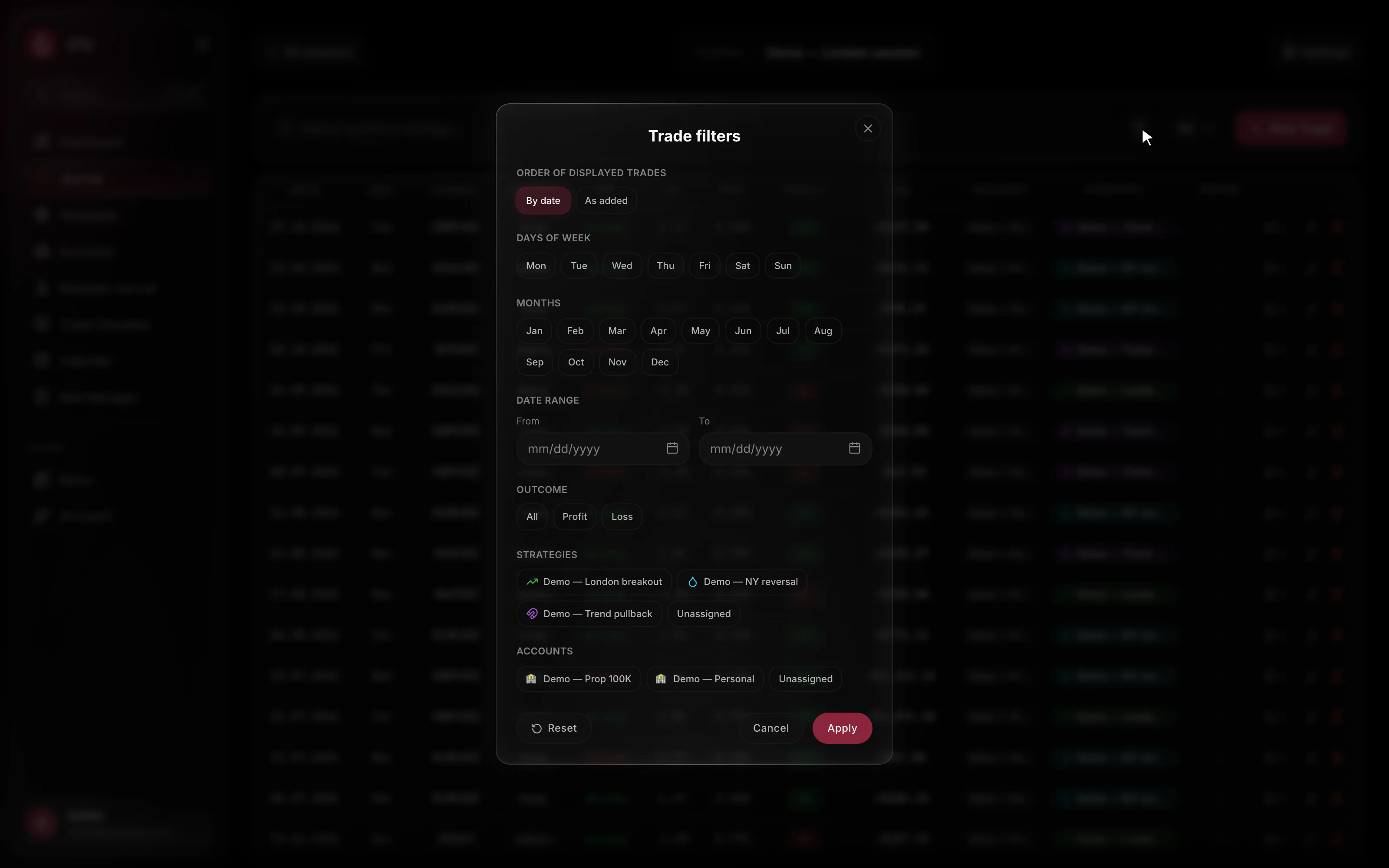
opens Trade filters. The button is lit while the table is filtered or sorted in an unusual way.
- Days of week and Months are rows of buttons. Press as many as you need.
- Date range has two dates, From and To. Fill in both.
- Outcome has All, Profit and Loss. A trade at exactly zero belongs to Profit.
- Strategies and Accounts list what you have created. Unassigned finds trades without a strategy or without an account.
Within one group the buttons widen the choice. Two days show the trades of both days. Different groups narrow it. A day together with a loss shows the losing trades of that day.
Nothing changes in the table until Apply. Reset clears every group and returns the order to By date. The filter stays while you are on the page.
3.4.5The order of trades
The first group of the filter window is Order of displayed trades.
- By date puts the latest entry date and time on top.
- As added puts the trade you recorded last on top. This is convenient when you enter old trades in batches.
The order is saved in your account, one for the real journal and one for the Backtest Journal. It changes the list only. Statistics always follow the dates of the trades.
Read also3.5 Recording a trade3.7 One trade in several sessions2.2 One account or one strategy
3.5Recording a trade
Every field of the trade form: time, symbol, session, result, money, risk, psychology, notes and screenshots.
3.5.1Opening the form
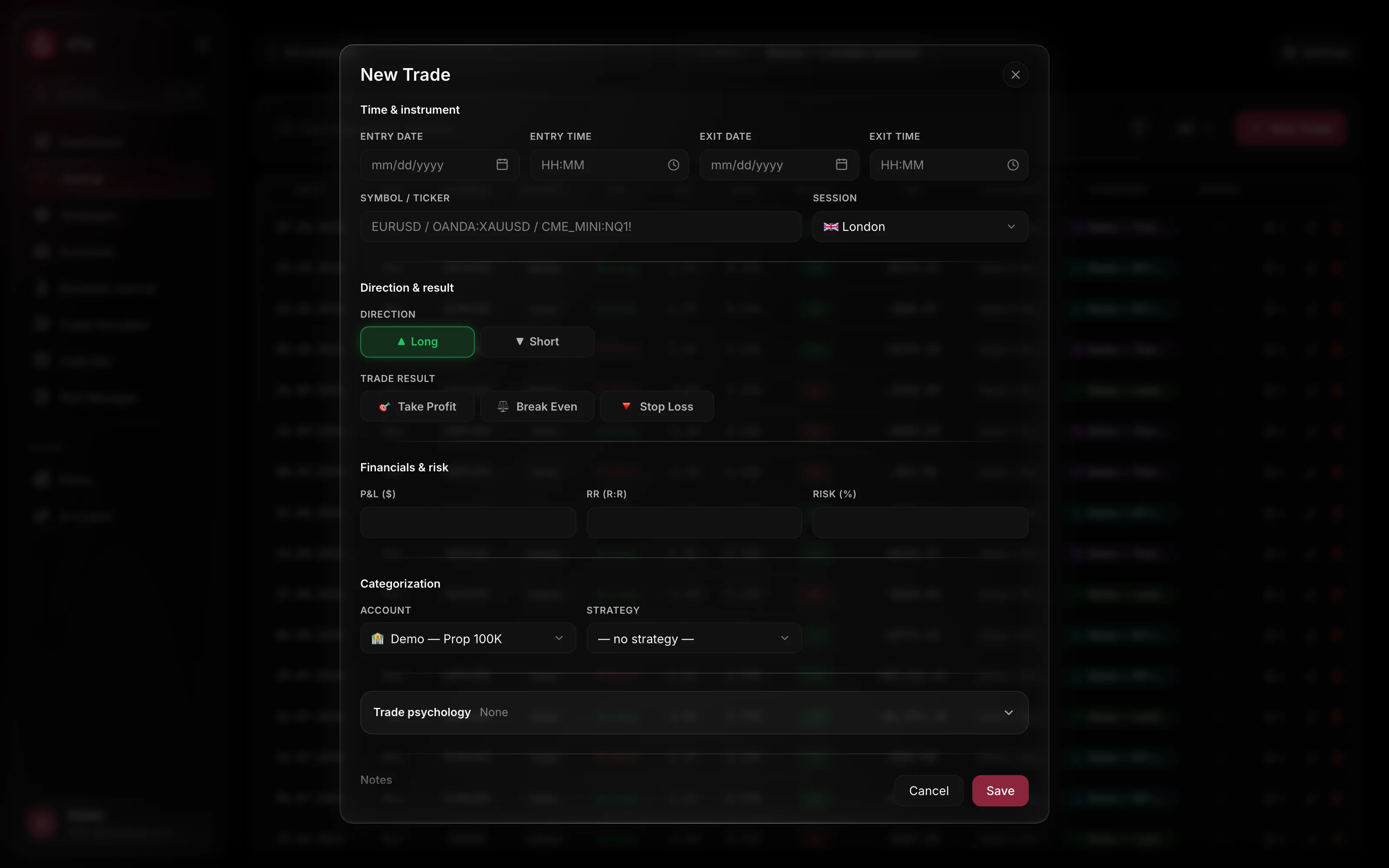
Open one of your sessions and press New Trade. The trade goes into this session and into the Main Archive.
The form needs three things, the symbol, the entry date and the result. Every other field adds something to the statistics. To change a trade later, press in its row. Esc and a click outside close the form.
3.5.2Time
Entry date and Entry time say when you opened the trade. Exit date and Exit time say when you closed it. The field of a date opens a calendar with the buttons Today and Clear. A time has the form HH:MM, and the colon appears by itself.
When both times are filled in, the corner of the block shows In the position with the length of the trade. A trade can last for days. The exit cannot be before the entry.
The time belongs to the time zone from the Appearance tab of the settings. Every trade remembers its own zone, and a later change of the setting does not move old trades.
3.5.3Symbol and market
Type what you traded into Symbol / Ticker. Letters become capitals by themselves. Click the empty field, and your three latest symbols are offered.
The market appears beside the field while you type. EURUSD is Forex, XAUUSD is Metals, NAS100 is Indices, BTCUSDT is Crypto, and a short ticker such as AAPL is Stocks.
You can write a ticker with the exchange in front, for example EXCHANGE:BTCUSDT. The exchange helps to find the market. The trade is saved with the plain symbol, and one instrument does not split into several in the statistics. CTJ does not connect to any broker or exchange. You enter the trades yourself.
3.5.4Session
Session is the market session of the entry. It can be Asia, Frankfurt, London, London / NY or New York. Enter the entry date and time so the app can identify the session. If the date is already filled in, entering the time updates the selection.
The sessions follow the local hours of the exchanges. Asia runs from 00:00 to 07:00 London time. Frankfurt is from 08:00 to 09:00 in Berlin. London is from 08:00 to 16:00 in London, and New York is from 08:00 to 16:00 in New York. When London and New York are both open, the session is London / NY. Changes to summer and winter time are followed for you.
You can choose a session manually in the form. The statistics use your choice if you leave the entry time blank or it falls outside every session. Otherwise they use the session that matches the entry time.
3.5.5Direction and result
Direction has two buttons, ▲ Long and ▼ Short.
Trade Result has three buttons, Take Profit, Break Even and Stop Loss. One of them is required. Take Profit and Stop Loss exclude each other. Break Even can stand alone or together with either of them.
- Break Even alone means exactly zero.
- Break Even with Take Profit means a close near the entry with a small profit.
- Break Even with Stop Loss means a close near the entry with a small loss.
3.5.6Money and risk
P&L ($) is the result in dollars. Enter a plain sum without a minus. The sign comes from the result, and a Stop Loss of 150 becomes a loss of 150 dollars. With Break Even alone, the field is locked at zero. If you then select Take Profit or Stop Loss, your previous amount returns. Leaving the amount blank gives a P&L of zero.
RR (R:R) is the reward compared with the risk. With 2, the trade earned or aimed at twice its risk. The field feeds Avg R:R on the Dashboard.
Risk (%) is the share of the account that was at stake. The field feeds the risk figures and the risk discipline of the trader portrait. The tab Risk Manager helps to size a position for a chosen risk.
3.5.7Account and strategy
Account says where the trade was taken, and Strategy says by which rule. The Dashboard filters and compares trades by these two fields. A trade without them is visible there only under All.
Both fields are filled in when the session has defaults. If the session has no account, the first account of your list is chosen. You can change either field or leave it empty.
3.5.8Psychology
Trade psychology is a line that opens a panel of tags. They describe how the trade went inside your head. Press a tag to add it and press it again to take it off. Any number of tags can be on at once.
Mistakes & emotions has Gambling, FOMO, Revenge trade, Fear, Greed, Overtrading, Off-plan, No setup, Tilt, Boredom, Impatience, Panic, Poor research, Missing information, Rushed analysis and Without thinking.
Discipline has Patience, Self-control, By plan, Discipline, Confidence, Cold calculation, Focus and Luck.
The card Behaviour on the Dashboard adds up what each kind of trade brought. It names the mistake that cost you the most.
3.5.9Notes
Notes is a text editor. Use it for the context of the market, the reason for the entry and what you would do differently.
The toolbar has three levels of headings, bold, italic, underline and strikethrough. It also has bulleted and numbered lists, a quote, a code block and for a picture. Undo and redo stand at the end. Select some text and press a button. Without a selection, the button applies to what you type next.
The counter shows how many characters are used. The limit is 200 on Starter, 3,000 on Just, 7,000 on PRO MAX and 50,000 on VIP.
3.5.10Screenshots
Screenshots is a gallery of chart pictures for this trade. There are two ways to add one, and the switch above the gallery chooses between them.
- Upload file takes a picture from your computer. Press + Add screenshot and choose a file.
- Paste URL takes a link to a picture, for example to a snapshot of your chart. Paste the link and press Enter or .
Every picture asks for its timeframe, from 1M down to 1m. Press a timeframe to choose it, and press it again to choose another. Pictures are sorted from the largest timeframe to the smallest, and the trade reads from the big picture to the entry. removes a picture.
The heading counts the pictures against the limit of your plan. A trade holds 2 on Starter, 7 on Just, 24 on PRO MAX and 100 on VIP. One file can have up to 1 MB on Starter, 2 MB on Just, 3 MB on PRO MAX and 3 MB on VIP.
3.5.11Looking through screenshots
Click a thumbnail in the form to open the viewer. In the table, a click on the number in the column Photo opens it without the form.
The counter at the top shows the place in the gallery. The arrows on the sides or the keys ← and → go from picture to picture. Click the picture to enlarge the place under the pointer, and move the mouse to look around. Another click returns the full view. Esc closes the viewer.
3.5.12An example from start to finish
You bought EURUSD on Tuesday at 10:15 and closed it at 13:40 at your target. The risk was 1% of an account of 10,000 dollars, the target was two risks, and the trade made 200 dollars.
- Set Entry date to Tuesday and Entry time to 10:15. Set the exit to the same day and 13:40. The corner shows the time in the position, and the session is chosen.
- Type EURUSD into Symbol / Ticker. The market shows Forex.
- Press ▲ Long and Take Profit.
- Enter 200 in P&L ($), 2 in RR (R:R) and 1 in Risk (%).
- Check Account and Strategy. The defaults of the session have filled them in.
- Open Trade psychology and press By plan and Patience.
- Write two lines in Notes about the reason for the entry.
- Add a picture of the 4-hour chart and one of the 15-minute chart, and choose their timeframes.
- Press Save.
3.5.13Saving and leaving
Save records the trade in the session where you opened the form. It also appears in the Main Archive. If you have other sessions, Add to other sessions? opens and shows where the trade was already saved. Select any additional sessions and choose Save and continue. To keep the trade only in its original session and the archive, choose Skip, close the window or click the shaded backdrop.
A form with unsaved changes does not close by accident. The app asks first, and Discard leaves without saving.
Read also3.6 Pictures in notes, and drawing on them3.7 One trade in several sessions2.10.3 What your mistakes cost
3.6Pictures in notes, and drawing on them
Paste a chart into a note, arrange pictures in a row, and mark them up with a brush, lines, arrows and text.
3.6.1Putting a picture into the text
A picture can stand inside the text, between paragraphs. There are three ways to put it there.
- Press on the toolbar and choose a file.
- Drag a file onto the text.
- Copy an image on your charting platform, click in the text and press ⌘V or Ctrl+V. This is the fastest way.
The toolbar opens one file at a time. You can drag or paste several images at once. The editor accepts JPG, PNG, WEBP and GIF.
3.6.2Arranging pictures
Click a picture to select it. The buttons appear over it.
- Change the size. Pull a corner. The proportions stay as they are.
- Move it. Drag the picture. A thin line shows where it will land.
- Put pictures side by side. Drag one picture to the left or to the right of another. They form a row, and each keeps its own width and caption. A picture that does not fit in the row can go above or below it.
- Add a caption. Press Caption and type under the picture. Enter returns to the text.
- Remove it. Press Remove image.
3.6.3Opening a picture and drawing on it
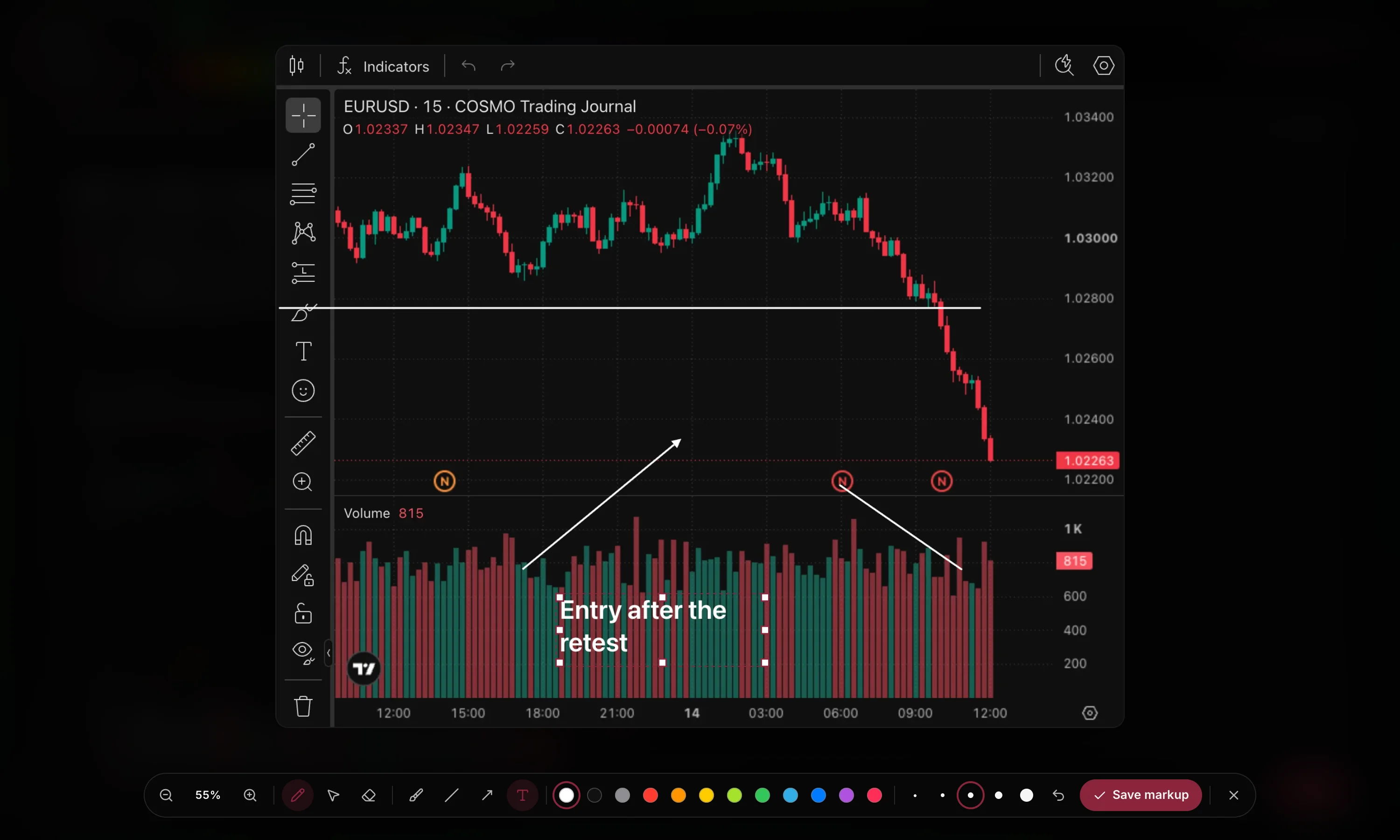
Double-click a picture, or press Open image. It opens over the whole screen. You can look at it closely and mark on it what mattered, for example a level, the entry or a missed signal.
and change the zoom, and so do the keys + and -. The key 0 fits the picture to the screen again.
Draw opens the drawing toolbar with six tools.
- Brush draws freely, after the pointer.
- Line draws a straight line. Drag from start to end, or click the start and then the end.
- Arrow draws the same line with an arrow head.
- Text puts a text box where you click, and you type at once.
- Select & move takes a shape you have drawn. Drag the shape to move it. Drag its handles to change it. Click a selected text to edit the words.
- Eraser removes a shape with one click.
Twelve colours and five stroke widths stand beside the tools. A colour or a width also changes the shape that is selected.
To work with several shapes, hold ⌘ or Ctrl and drag a frame over them. The group moves and changes colour together. Delete and Backspace remove what is selected. Undo stroke goes back one step at a time.
3.6.4Saving what you drew
Save markup joins the drawing and the picture into one new image, which takes the place of the old one in the text. The shapes become part of the picture and can no longer be moved. To add something later, open the picture again and draw over it.
Close leaves the editor without the drawing, and the picture stays as it was. Esc goes back in steps. It ends the text or the line you are drawing, then clears the selection, and then closes the editor.
Drawing works on pictures inside the text. A gallery of pictures under the text is for viewing.
Read also3.5.9 Notes4.3 Text, pictures and drawing5 Accounts
3.7One trade in several sessions
A trade exists once and sessions point to it, which decides what deleting really does.
3.7.1One trade, several sessions
A trade exists once, and sessions point to it. The same trade can belong to June, to Breakouts and to Prop challenge. An edit in one of them is visible in all three, and nothing is copied. The trade is always in the Main Archive as well.
This gives you several views of the same trades, by time, by setup and by account, without entering a trade twice. On a plan that counts trades, such a trade counts once.
3.7.2Attaching and detaching
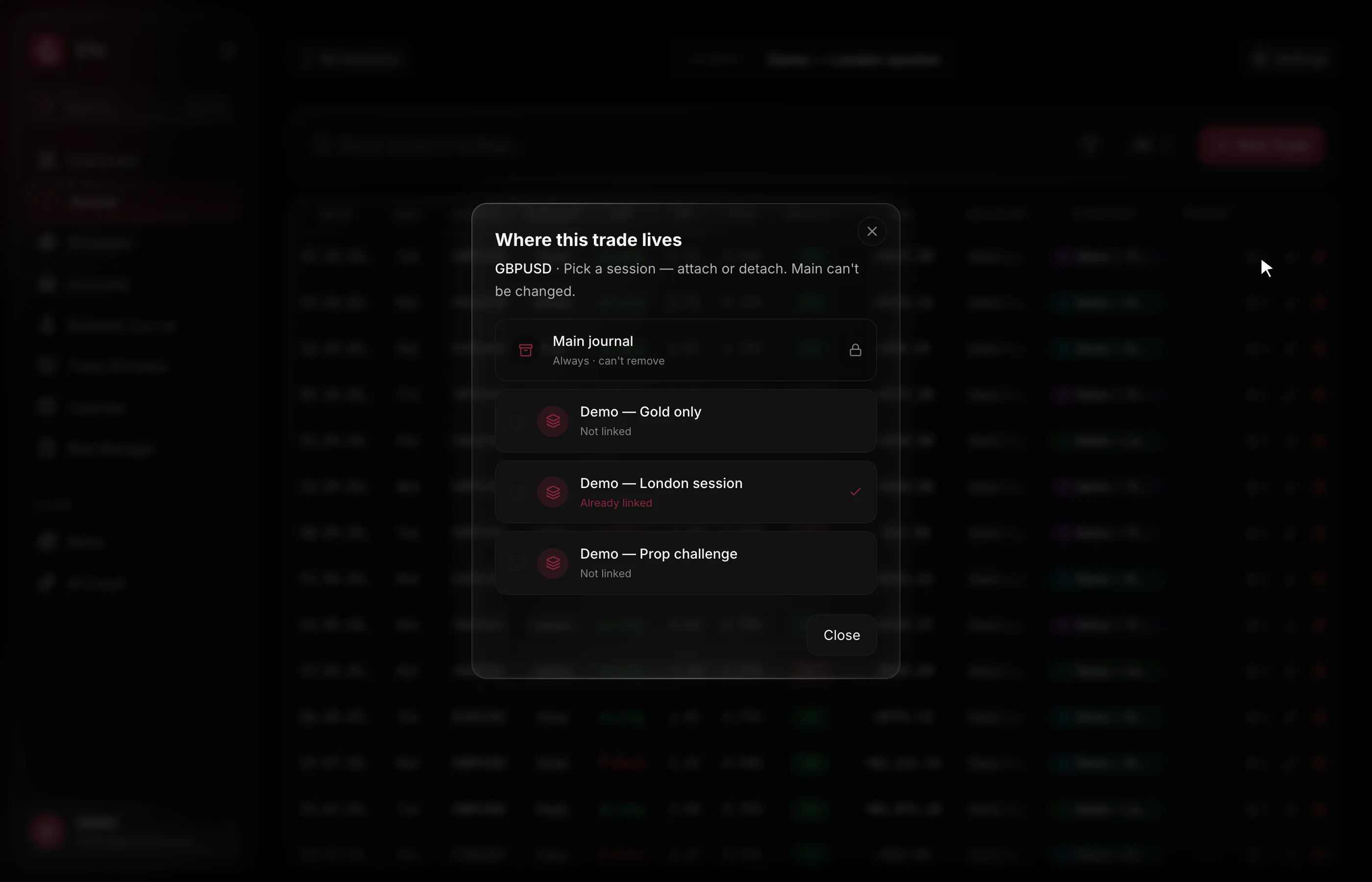
The first moment to choose sessions is right after a new trade, in the window Add to other sessions?. Later the same is done from the table.
- Press in the row of the trade. The window Where this trade lives opens.
- Choose a session in the list. The words under its name say Already linked or Not linked.
- Press Attach to add the trade to this session, or Detach to take it out.
Main Archive stands first with the words Always · can't remove.
3.7.3What deleting really does
works differently depending on where you press it.
- In a session, when the trade belongs to other sessions too. The button of the window is Remove. The trade leaves this session and stays in the others and in the Main Archive.
- In the only session of the trade. The button is Delete. The trade is deleted for good, with its notes and screenshots.
- In the Main Archive. The button is Delete. The trade is deleted for good from every session.
A full delete cannot be undone.