
Backtest sessions
Sessions, the table and the trade form work as in the journal, with separate limits and an Active mark.
6.3.1Sessions of the backtest
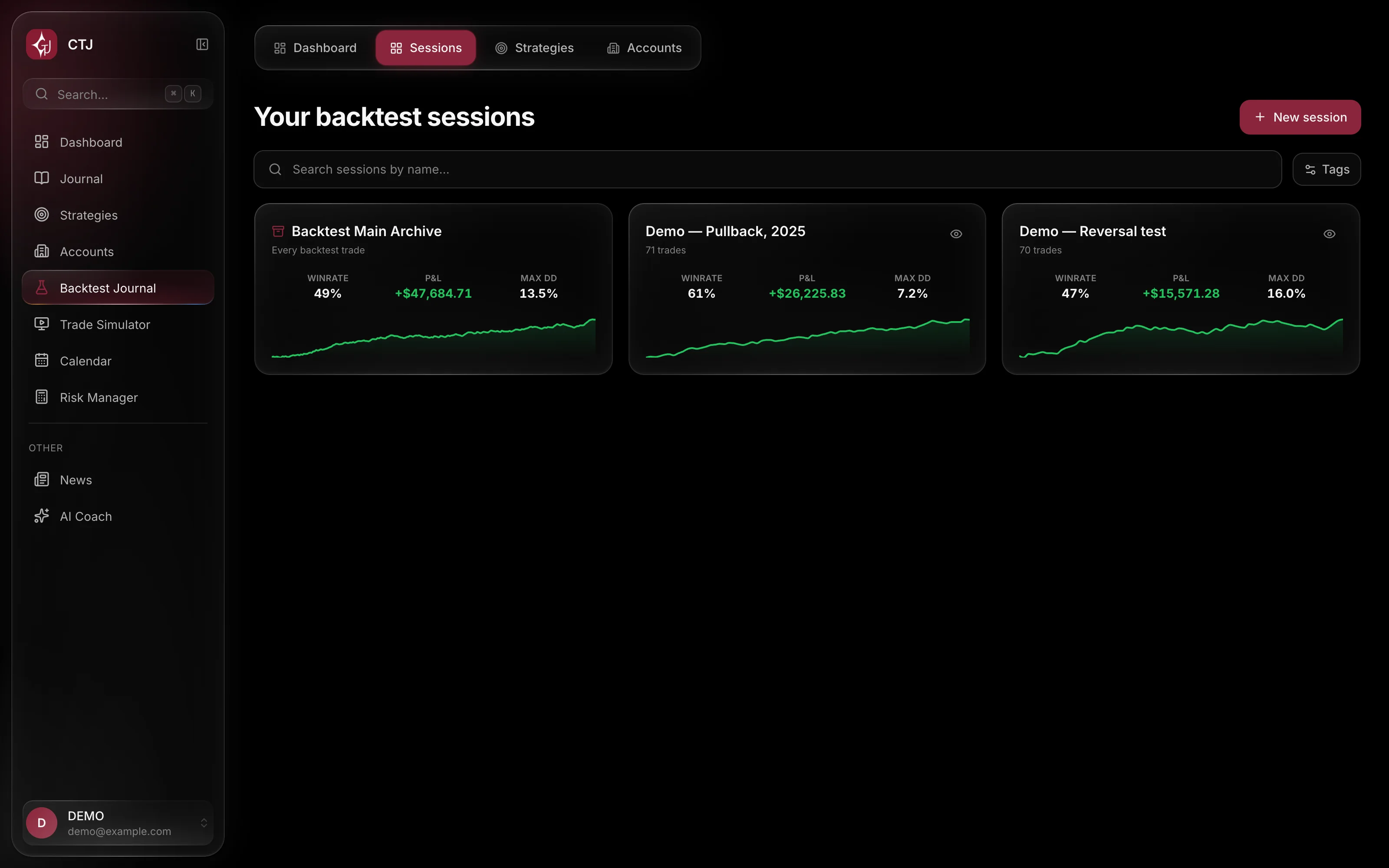
Sessions keeps tests apart from each other. Use one session for one version of an idea, for example London breakout, first version and London breakout, with a news filter. Their cards then compare the versions.
The first card is Backtest Main Archive. Every backtest trade goes here by itself. The archive is for viewing, and it does not count towards your number of sessions.
A card looks the same as in the Journal tab: the name, the number of trades, Winrate, P&L, Max DD and a small equity curve. The mark Active stands on the session that received a trade last. After a break it shows which test you were in. A click opens the session.
6.3.2Creating a session
New session opens a window with six fields.
- Name is required, up to 80 characters.
- Starting balance is the sum the figures of this session count from. Enter a balance if you want to use it in a linked simulator session.
- Instrument is a note about the market, up to 60 characters.
- Strategy and Account are filled in for you in every new trade here. The lists hold the strategies and accounts of the test side.
- Description has room for the conditions of the test, up to 500 characters.
Starter has 2 backtest sessions, Just has 12, PRO MAX has 32 and VIP has 1,000.
6.3.3Finding and hiding
Search sessions by name… looks through names and tags. The row Filter by tags: shows the sessions with any of the chosen tags, and Clear turns the tags off.
The eye on a card hides the session. Its card turns pale and gets the mark Hidden, and its trades are excluded from the dashboard unless they also belong to another visible, unlocked session. brings them back. Nothing is deleted.
6.3.4Tags of the backtest
Tags opens Manage tags. Type a name into New tag…, choose a colour and press Create. changes a tag, and deletes it from every session. Tags are attached in the settings of a session, with Attach tag.
These tags are separate from the tags of the real journal. Starter has 3 with 1 on a session. Just has 12 and 7, PRO MAX has 48 and 12, VIP has 1,000 and 100.
6.3.5Inside a session
The plate at the top says Backtest, and the world you are in is always clear. All sessions returns to the cards. Settings opens the settings of the session.
The trades stand in a table, one row for each trade. The columns go from Date and Symbol through Dir, RR, Risk, Result and P&L to Account, Strategy and Photo. The last two columns hold with the sessions of the trade, for editing and for removing. The table opens with 50 trades, and Show more adds up to 100.
Search symbol or strategy… also matches trade tags. Use the list beside it to filter by market.
6.3.6Filtering a test
opens Trade filters. You can choose days of the week, months, a range of dates, the outcome, strategies and accounts. Unassigned finds trades without a strategy or an account. Buttons in one group widen the choice, and different groups narrow it. Press Apply to use the filter and Reset to clear it.
Order of displayed trades sorts by the date of the trade or by the moment you recorded it. The order of the Backtest Journal is saved apart from the order of the real journal.
6.3.7Recording a backtest trade
Press New Trade inside a session. The symbol, the entry date and the result are required.
- Enter the dates and times of the entry and the exit, as they stand on the old chart. The length of the trade and its market session appear by themselves.
- Type the symbol. The market appears beside it.
- Select ▲ Long or ▼ Short. Choose Take Profit or Stop Loss for the outcome. You can add Break Even to either one to record a small gain or loss near the entry price.
- Enter the amount in P&L ($) without a sign, then enter RR (R:R) and Risk (%). The result sets the sign. Selecting only Break Even sets P&L to zero.
- Choose Account and Strategy. The lists hold the test side only.
- Open Trade psychology and press the tags that fit.
- Write a note. It can hold headings, lists and pictures.
- Add screenshots with Upload file or Paste URL, and choose a timeframe for each.
If you have other backtest sessions, the window Add to other sessions? follows. Tick the sessions and press Save and continue, or press Skip.
Starter holds 55 backtest trades. Paid plans do not count trades. The backtest starts with 2 GB of space on Just, 8 GB on PRO MAX and 80 GB on VIP. When either journal fills its own part, it goes on into the free room of the other.
6.3.8One trade in several sessions, and deleting
One backtest trade can belong to several backtest sessions. in its row opens Where this trade lives. Choose a session and press Attach or Detach.
removes the trade from this session if other sessions hold it too. In its only session, and in the main archive, it deletes the trade for good.
6.3.9Settings of a backtest session
Open Settings inside a session to change its name, tags, instrument, default strategy and account, description or starting balance.
When you create a simulator session, you can use the starting balance of its linked backtest session. If no balance is set, the simulator starts at $100,000. A balance of zero is carried over.
Equity chart base lets you choose between the starting balance and zero. The shared Dashboard chart uses the setting under Appearance. The session card shows the equity curve starting at the selected base, along with P&L, win rate and trade count. Delete session in the Danger zone deletes the session for good, with the trades that lived only in it.
6.3.10Trades coming from the simulator
A position closed in the Trade Simulator can go into a backtest session with the button Add to journal. The trade form opens over the chart with the fields filled in from the position. From Just, you can attach a chart snapshot. Use the same action again to open the saved trade for editing.
Read also3 Journal7.10 Sending a trade to the journal6.4 Backtest strategies