
Pictures in notes, and drawing on them
Paste a chart into a note, arrange pictures in a row, and mark them up with a brush, lines, arrows and text.
3.6.1Putting a picture into the text
A picture can stand inside the text, between paragraphs. There are three ways to put it there.
- Press on the toolbar and choose a file.
- Drag a file onto the text.
- Copy an image on your charting platform, click in the text and press ⌘V or Ctrl+V. This is the fastest way.
The toolbar opens one file at a time. You can drag or paste several images at once. The editor accepts JPG, PNG, WEBP and GIF.
3.6.2Arranging pictures
Click a picture to select it. The buttons appear over it.
- Change the size. Pull a corner. The proportions stay as they are.
- Move it. Drag the picture. A thin line shows where it will land.
- Put pictures side by side. Drag one picture to the left or to the right of another. They form a row, and each keeps its own width and caption. A picture that does not fit in the row can go above or below it.
- Add a caption. Press Caption and type under the picture. Enter returns to the text.
- Remove it. Press Remove image.
3.6.3Opening a picture and drawing on it
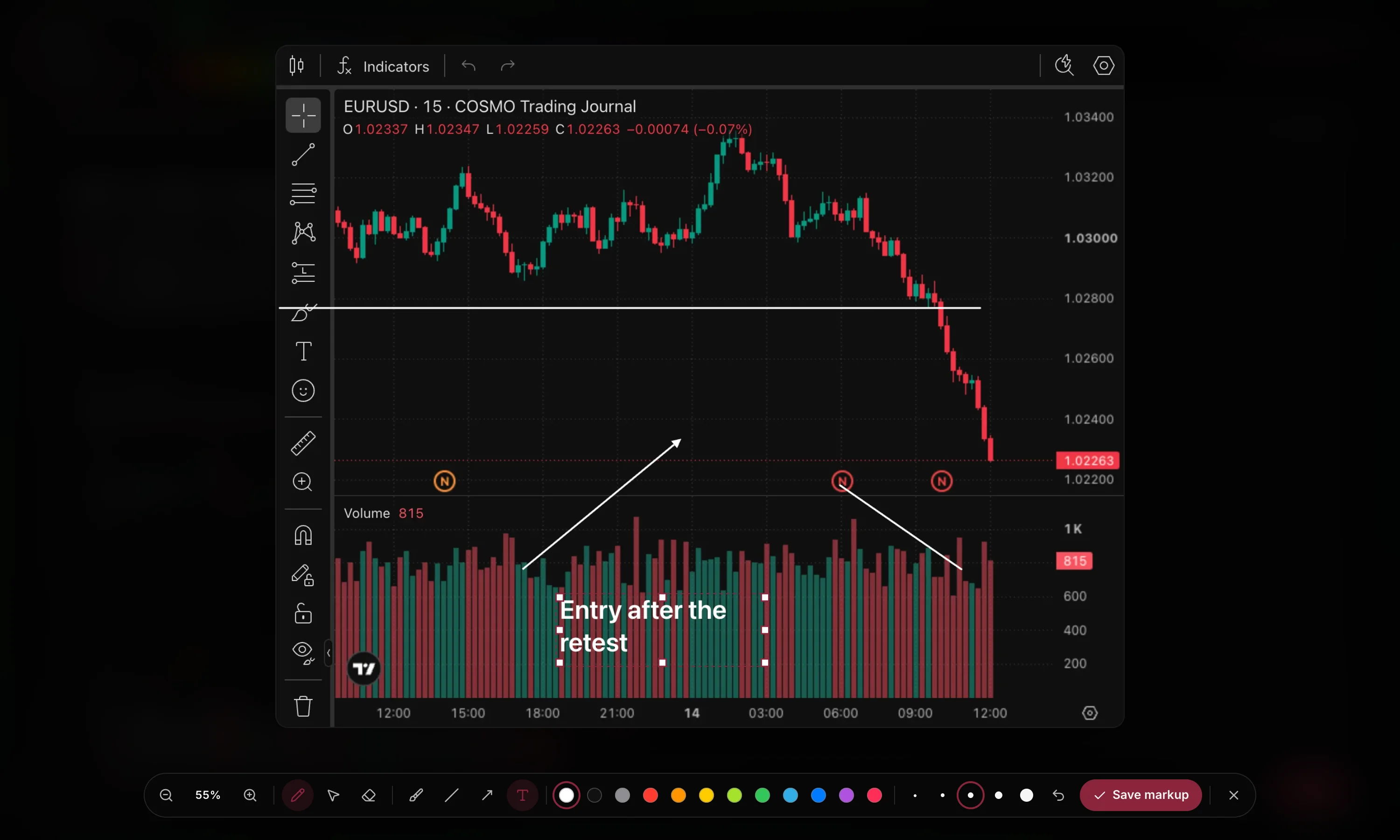
Double-click a picture, or press Open image. It opens over the whole screen. You can look at it closely and mark on it what mattered, for example a level, the entry or a missed signal.
and change the zoom, and so do the keys + and -. The key 0 fits the picture to the screen again.
Draw opens the drawing toolbar with six tools.
- Brush draws freely, after the pointer.
- Line draws a straight line. Drag from start to end, or click the start and then the end.
- Arrow draws the same line with an arrow head.
- Text puts a text box where you click, and you type at once.
- Select & move takes a shape you have drawn. Drag the shape to move it. Drag its handles to change it. Click a selected text to edit the words.
- Eraser removes a shape with one click.
Twelve colours and five stroke widths stand beside the tools. A colour or a width also changes the shape that is selected.
To work with several shapes, hold ⌘ or Ctrl and drag a frame over them. The group moves and changes colour together. Delete and Backspace remove what is selected. Undo stroke goes back one step at a time.
3.6.4Saving what you drew
Save markup joins the drawing and the picture into one new image, which takes the place of the old one in the text. The shapes become part of the picture and can no longer be moved. To add something later, open the picture again and draw over it.
Close leaves the editor without the drawing, and the picture stays as it was. Esc goes back in steps. It ends the text or the line you are drawing, then clears the selection, and then closes the editor.
Drawing works on pictures inside the text. A gallery of pictures under the text is for viewing.
Read also3.5.9 Notes4.3 Text, pictures and drawing5 Accounts