
The sidebar and the account menu
The panel on the left holds every tab, and the menu of your profile holds settings, subscription, theme, language and support.
1.4.1What is in the sidebar
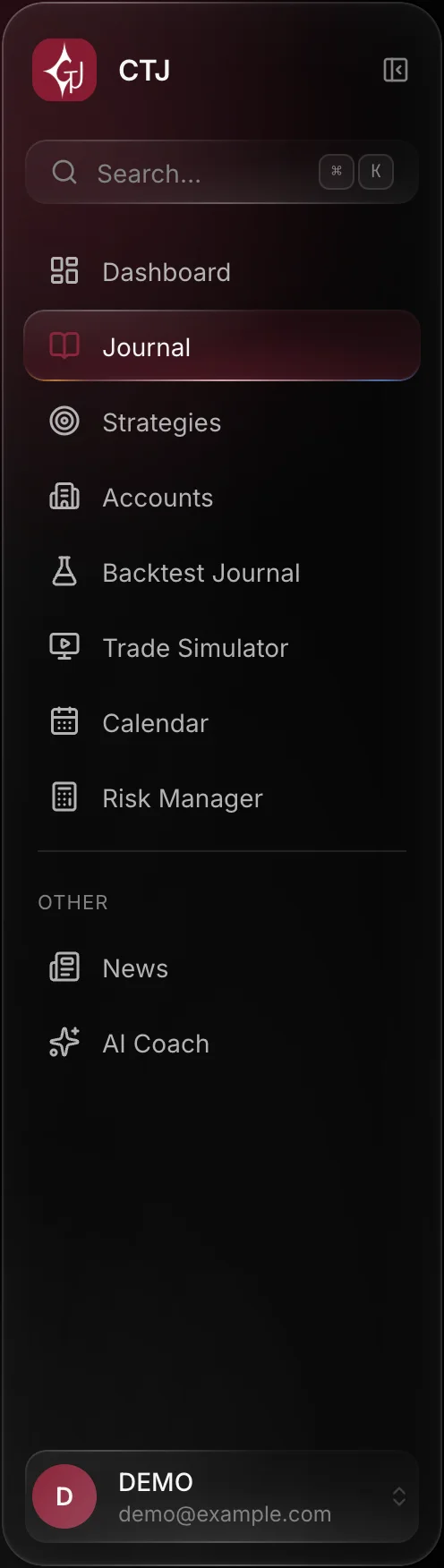
The sidebar stays on the left of every tab. From top to bottom it has the logo, the search field, eight main tabs, the group OTHER and your profile. One click on a tab opens it. The open tab is lit.
On Starter there is one more button above the profile, Upgrade to Just. It opens the plan window and disappears after you move to a paid plan.
1.4.2Making it narrow
next to the logo folds the sidebar down to icons, and the page gets more room. This helps on a wide table or on the simulator chart. unfolds it. While the sidebar is narrow, point at an icon to see the name of the tab.
The app remembers the position on this computer. The sidebar stays narrow the next time you open it.
1.4.3The menu of your profile
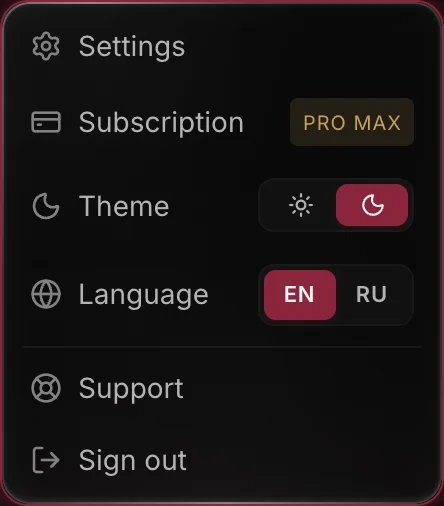
Click your name at the bottom of the sidebar. The arrows mark the place. A menu rises above the name, and everything in it works at once, without a separate save.
Settings opens the settings. The back button there returns you to the screen you came from.
Subscription opens the plan window over the current screen. The badge beside it names your plan. In this window, Choose plan on a paid card opens the payment page. The card of your own plan says Current plan.
Theme has two positions, light and dark . The light look exists for the main theme, Obsidian Glass. With another theme chosen in the settings, the switch stays on dark and does not move. When you return to Obsidian Glass, your last position comes back.
Language switches the whole interface between EN and RU. The choice is saved in your account and follows you to another computer.
Support opens the support tab of the settings with the addresses of the team.
Sign out ends the work on this computer at once.
In the narrow sidebar the same menu shrinks to icons. One click on the theme icon or on the globe switches to the other position. A click outside the menu or the Esc key closes it.
Read also1.5 Search on ⌘K12.4 Appearance