
Search on ⌘K
One keyboard shortcut opens a search across tabs, commands, trades, strategies and accounts.
1.5.1One search for everything
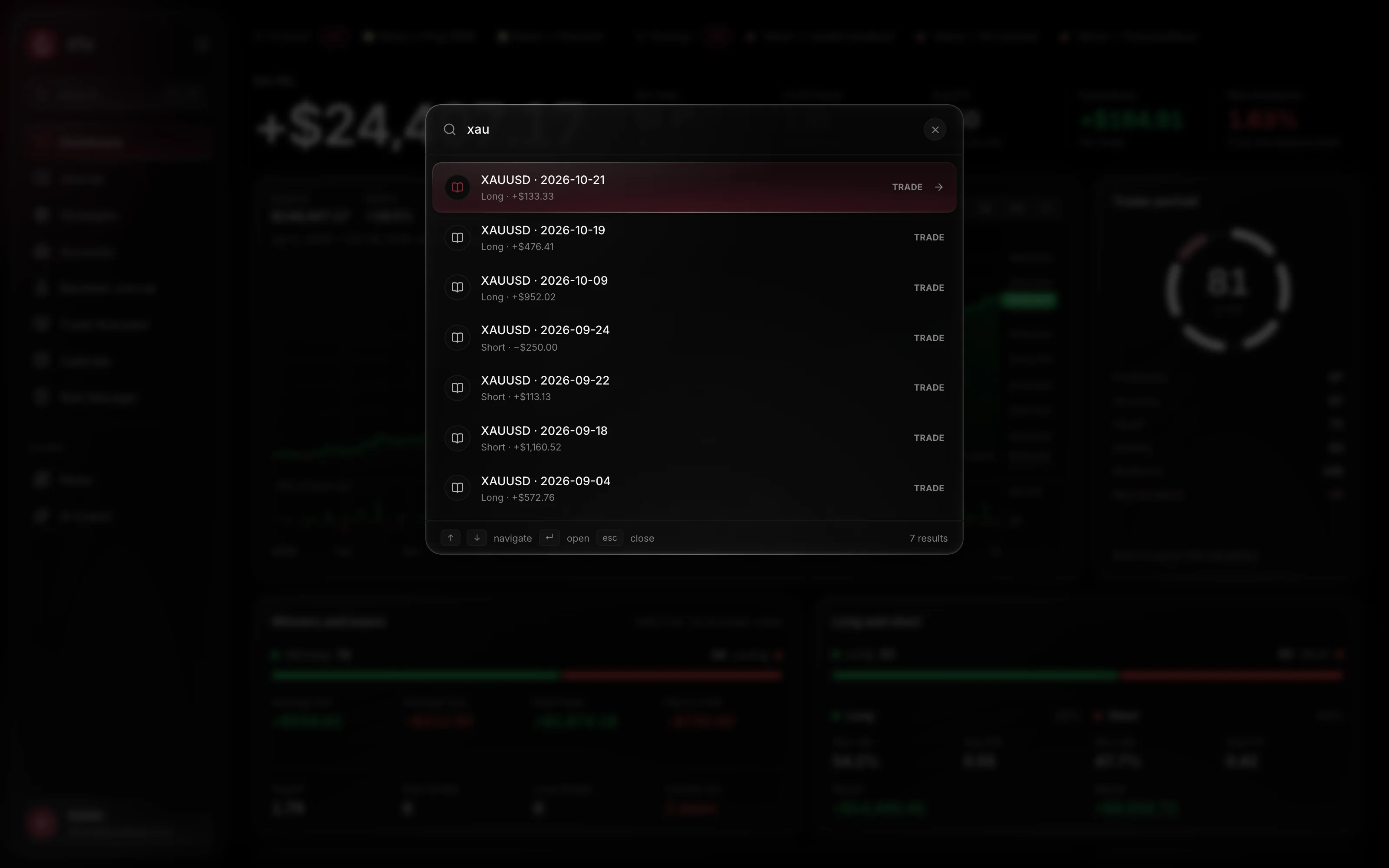
Press ⌘K on a Mac or Ctrl+K on Windows. A click on the field in the sidebar does the same. The search window opens over the current screen. The same keys close it, and so do Esc and a click outside.
Type a few letters. The list changes with every letter, and the word on the right of each row says what the row is.
- Tabs. Every tab of the sidebar and Profile. The search is the way to the profile page.
- Commands. New trade opens the form in the session you last added a trade to. If you have yet to add a trade, it uses your first session. If you have no sessions, it opens the Journal, where you can create one. New account and New strategy open the tab where you create them.
- Trades. The row shows the symbol and the date, with the direction and the result under them. Selecting a trade opens its form. In Reader Mode, it opens the trade’s screenshots if it has any, or the journal table.
- Strategies and accounts. A choice opens the tab that holds them. An account also shows its balance and currency.
You do not have to type a name in full. Letters in the right order are enough, and eurd finds EURUSD.
1.5.2What the search covers
Search covers the 30 most recently added trades in the live journal, excluding frozen trades and trades that are only in hidden sessions. To find an older trade, open its session in the Journal and search above the table. That search covers the whole session.
1.5.3Working from the keyboard
↑ and ↓ move along the list. ↵ opens the highlighted row and closes the window. esc closes the window without a choice. You can go from any tab to a new trade without touching the mouse. Press ⌘K, type new, press ↵.
Read also1.4 The sidebar and the account menu3.5 Recording a trade