
Placing a trade
Order types, sizing by risk, stop and target, and levels you drag on the chart.
7.7.1The trading panel
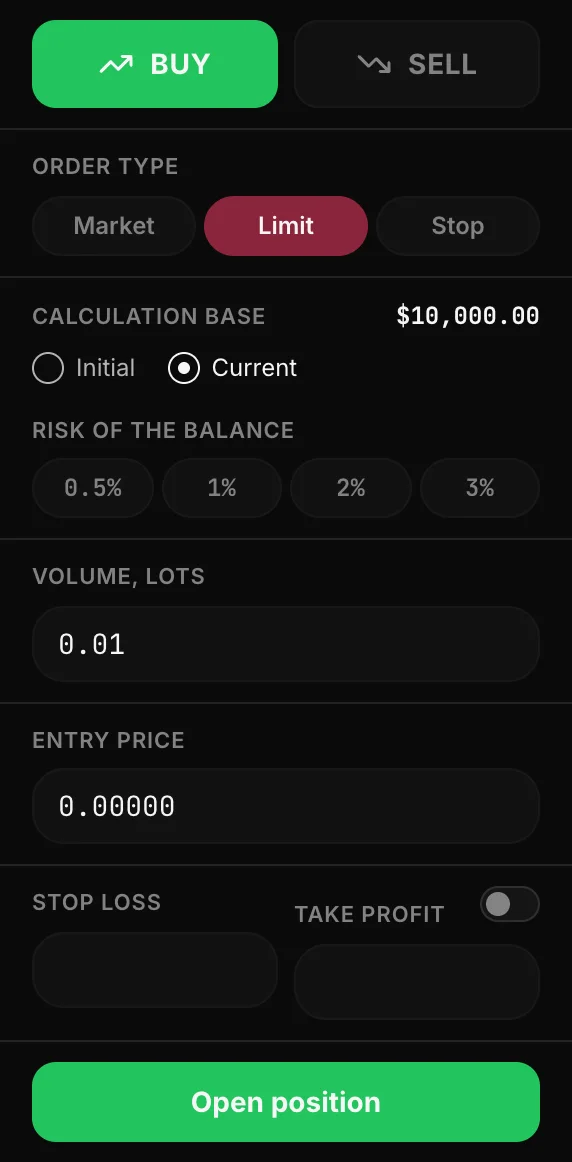
The panel on the right has two sections, chosen by the icons at its top: Trading and News. The side button folds it to a thin strip when you want the chart bigger, and the trading panel keeps your entries while the News section is showing.
7.7.2Direction and order type
Buy or Sell chooses the direction. Order type is one of three:
Market opens at the current price, right now.
Limit waits for a better price: a buy below the market, a sell above it.
Stop waits for a breakout: a buy above the market, a sell below it.
If the price you typed is on the wrong side for the type, the order is refused with a message explaining this.
7.7.3Sizing by risk
Under Risk of the balance, choose 0.5%, 1%, 2% or 3% and set your stop. The panel shows the planned risk in dollars before commission and selects a supported lot size. It may round the lot size down.
Calculation base says what the percentage is taken from: Initial is the starting amount of the session, and Current is the balance right now. With Initial, the dollar risk for a given percentage stays fixed. With Current, it follows your balance. Lot size in either mode also depends on how far the stop is from entry. The session remembers your choice.
You can also just type the lots in Volume, lots.
7.7.4Stop loss and take profit
The switch Use stop loss and take profit turns these two fields on or off. Each takes a price. A stop on the wrong side of the entry is refused: for a buy, the stop must be below and the target above, and the mirror image for a sell.
7.7.5Levels on the chart
While the panel is open on Trading, the entry, the stop and the target also stand on the chart as dashed lines. Drag a line and its field fills itself, which is usually much quicker than typing a price.
The same goes for the positions you already have. Drag the stop or target line of an open position or a pending order, and buttons Confirm and Discard appear beside it, so a stray drag cannot move your stop by accident.
7.7.6Planning with the Long and Short Position tools
The library's own Long Position and Short Position tools work with the panel. Draw one on the chart and select it, and the panel fills itself from it: side, entry, stop and target, with a line that reads From grid. Press Open position, and the plan on the chart becomes an order. It is the most visual way to plan a trade.
7.7.7Opening
Open position sends the order, and Order placed confirms it. A commission per lot, set for each instrument, is taken from your balance on opening and again on closing, so costs are part of your results, as they would be with a real broker.
Read also7.8 Positions, orders and history9 Risk Manager7.3.4 Linking a journal session